Immich is the self-hosted Google Photos alternative with automatic phone backup and smart search. Install it on a VPS with Docker Compose.
Immich is a self-hosted photo and video backup solution designed to replace Google Photos. It offers automatic mobile backup, face and object recognition, timeline views and shared albums — all on your own server. This guide installs it with Docker Compose. One honest note up front: photos eat storage fast, so plan disk from day one.
Storage first: plan before you install
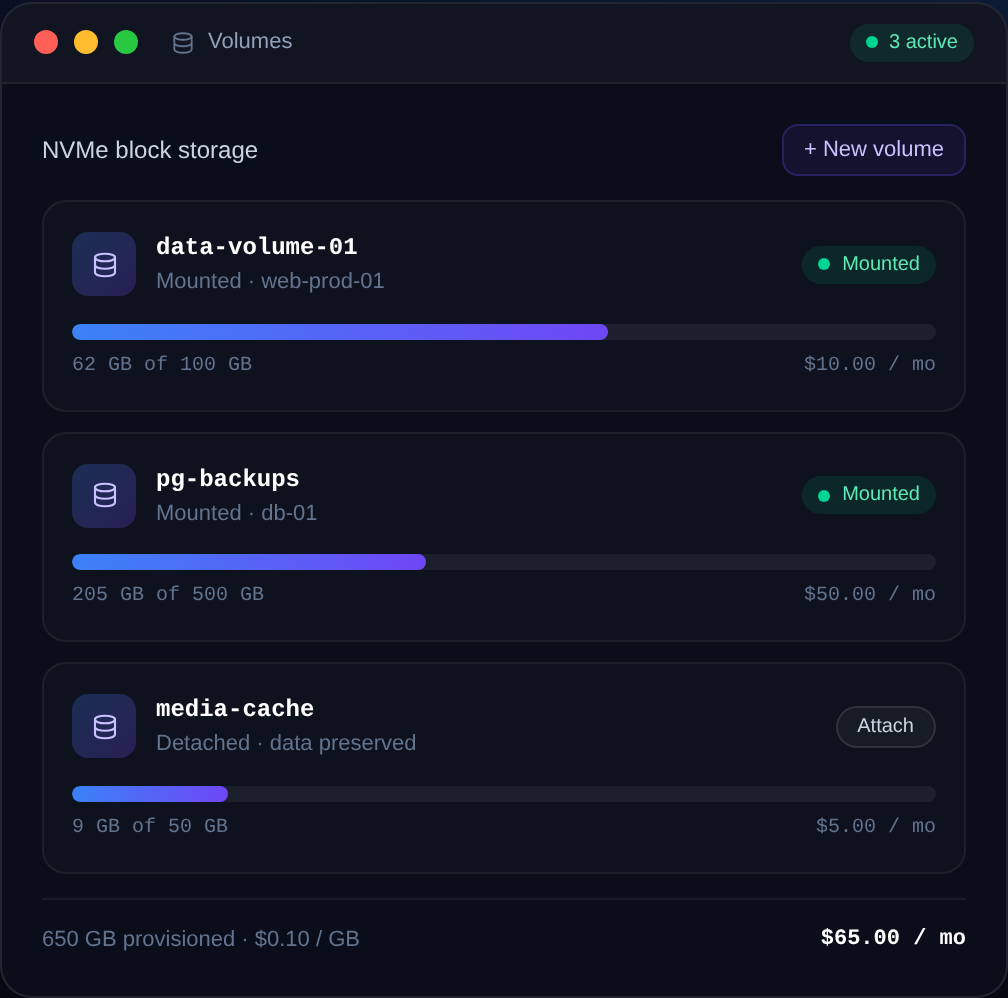
A phone library can be tens or hundreds of GB. On a VPS, attach a block storage volume and point Immich's upload location at it so you can grow storage without rebuilding. Estimate roughly 2–4 MB per photo and much more for 4K video, then add headroom.
Prerequisites
- A VPS with 2 GB+ RAM (machine-learning features like search benefit from more) and Docker installed — run Docker on a VPS.
- A domain with an A record, e.g.
photos.example.com.
Deploy Immich
Immich ships an official Compose file with several services (server, machine learning, Postgres and Redis). Fetch the official files:
mkdir -p ~/immich && cd ~/immich
wget -O docker-compose.yml https://github.com/immich-app/immich/releases/latest/download/docker-compose.yml
wget -O .env https://github.com/immich-app/immich/releases/latest/download/example.env
Edit .env to set your upload location and a strong database password:
UPLOAD_LOCATION=/mnt/photos/immich
DB_PASSWORD=change-me
Point UPLOAD_LOCATION at your mounted block-storage path. Then start it:
docker compose up -dThe web app comes up on port 2283.
Put it behind HTTPS
Front Immich with Caddy so your phone backs up over a secure URL:
photos.example.com {
    reverse_proxy 127.0.0.1:2283
}
Lock the firewall to web and SSH:
sudo ufw allow OpenSSH
sudo ufw allow 80/tcp
sudo ufw allow 443/tcp
sudo ufw enable
Set up automatic phone backup
Open https://photos.example.com, create the admin account, then install the Immich app on your phone. Point it at your server URL, log in, and enable Backup. It uploads your camera roll and continues automatically in the background — the Google Photos experience, on your hardware.
A word on backups
Immich is your backup of your photos, but the server itself still needs backing up. Your data is the UPLOAD_LOCATION directory plus the Postgres database. Snapshot the volume and dump the database on a schedule, and keep a copy off-server. If Immich is your only copy of irreplaceable photos, follow the 3-2-1 rule.
Backup settings on your phone
In the mobile app's *Backup* screen, choose which albums to include (your camera roll at minimum), enable background backup so new photos upload automatically, and turn on foreground backup for an immediate first sync. On iOS, allow background app refresh or the system will throttle uploads. You can also enable a Wi-Fi only option to defer large uploads on mobile data.
Albums, sharing and external libraries
Once photos are flowing in, Immich becomes genuinely pleasant to use:
- Albums: group photos and share an album with other users on your server, or generate a public link for people without an account.
- Partner sharing: share your whole timeline with a family member so you both see each other's photos.
- External libraries: if you already have a big archive on disk, point Immich at it as a read-only external library instead of re-uploading.
- Smart search: thanks to the machine-learning container, you can search by what's *in* a photo ("beach", "dog", "receipts") and browse automatically detected people.
Updating Immich carefully
Immich moves fast and occasionally makes breaking changes, so treat updates deliberately. Always read the release notes, back up the database and UPLOAD_LOCATION first, then update:
cd ~/immich
docker compose pull
docker compose up -d
Pin to a specific release tag rather than latest if you want to control exactly when you move versions. Your originals live in UPLOAD_LOCATION and are safe across updates, but the database matters too — never skip that backup before a major version jump.
Reclaiming space and finding duplicates
Photo libraries only grow, so managing storage is part of running Immich. A few habits keep it under control:
- Watch usage in the admin panel's storage stats, and expand your block storage volume before it fills rather than after.
- Use duplicate detection to find and remove copies of the same photo that crept in from multiple backups — it's common to have the same image twice after migrating from another service.
- Empty the trash periodically; deleted assets sit in a recycle bin for a grace period before they actually free space.
Immich also runs background jobs to generate thumbnails and machine-learning data. After a big import, those jobs run for a while and use CPU — let them finish during quiet hours, and give the machine-learning container a little extra RAM if search or face detection feels slow. Once the initial processing settles, day-to-day use is light.
FAQ
Is Immich a good Google Photos replacement?
It's the closest self-hosted match, with automatic backup, smart search, face recognition and shared albums. It's under active development, so keep it updated.
How much storage do I need?
Size it to your library plus growth. A phone library is often 50–200 GB; use a block-storage volume so you can expand without migrating.
Does Immich do face and object recognition?
Yes, locally via its machine-learning container — no cloud involved. It benefits from a little extra RAM but runs on modest VPS plans.
Can multiple family members use one Immich server?
Yes. Create additional users and share albums between them, each with their own private timeline.
Give your photos a private, permanent home. Attach block storage to a fast NVMe VPS and back up your whole camera roll on your terms.

Cloud VPS hosting
Deploy in seconds, not weekends
Nxeon · Nxeon editorial
★★★★★ Straight-talking guides from the team that runs the servers.