




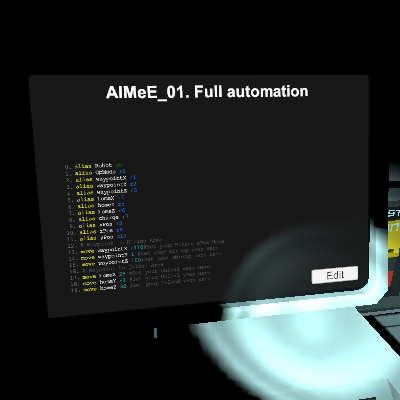
About AIMeE_01. Full automation
From Steam WorkshopThis code is adapted for the update. I had to tweak something to make it work correctly. Attention! After the latest updates, something has changed. Now in Logig Writer you need to set "Setting"…
This code is adapted for the update. I had to tweak something to make it work correctly.
Attention! After the latest updates, something has changed. Now in Logig Writer you need to set "Setting" instead of "On". To make the monitor that shows the battery charge turn blue, scroll to "Color" and set "Setting" again.
For those who want to run some of their own code for the robot, I will give a hint .. After the update, the Robot enters the desired mode more slowly. Therefore, you need to register "sleep" for 2-3 seconds so that he has time to enter the same unloading mode. That's exactly what I corrected in this code in two places.
Subscribe additionally to AIMeE_02. Full automation for the second chip. If something is not working correctly, update the code when a new version appears.
The robot is fully automated and can be controlled from the base. The only time you have to run after him (fly) is when he falls into a hole. You can easily find it by the current coordinates that you will see on the monitors.
The code from the Steam is taken as a basis. I don't remember the author, but thank him very much for that!
There were only four monitors in the author's code. I added four more, which made it possible to control the robot completely from the base.
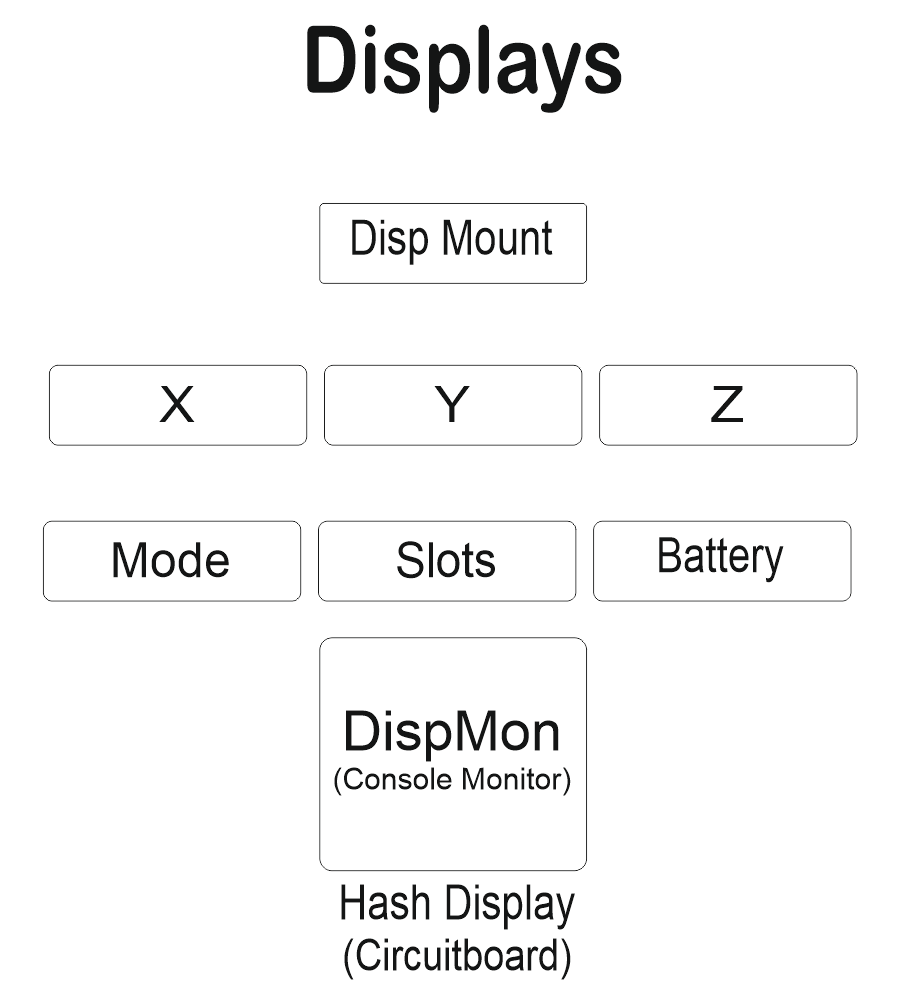
Monitors display: 1. X-coordinates (author) 2. Y-coordinates (mine) 3. Z-coordinates (author) 4. Operating mode (author) 5. Number of ore slots filled (mine) 6. Battery charge (author) 7. Displays the extracted ore (mine) 8. Allows you to see the amount of ore in the field of view work (mine).
In fact, the confident control of the robot from the base gives the addition of a monitor with Y-coordinates. The other three monitors, added by me, for information (what have you extracted, what are you carrying?), although the eighth monitor allows you to quickly detect that the ore is no longer in the Robot's field of view.
Instructions for use: 1. Insert an empty processor into the Robot's head (necessarily empty). 2. Enter the X, Z and Y coordinates of the "House" in the computer. 3. Enter the X and Z coordinates for the working location in the computer and click "Export". 4. Follow the Robot until it arrives at the specified coordinates (this is done once until you send it to other coordinates). 5. Compare the Y coordinates on the monitor and in the computer. 6. If the Y coordinates on the monitor and in the computer do not match, equate the Y coordinate in the computer with the Y coordinate on the monitor. Click "Export".
Note: For convenience, the Y coordinate is rounded to an integer. Therefore, sometimes it may not coincide with the real coordinate in the computer, although the numbers will be the same, both on the monitor and in the computer. If you see on the monitors that the X and Z coordinates do not change significantly, then the robot is spinning in place. Change the Y-coordinate by one to plus or minus. Which way to change the Y-coordinate is determined by the "Scientific poke Method". For example, first reduce the Y-coordinate by one, and if the Robot is still spinning in place, change the Y-coordinate by one higher from the previous value, and not from the one already changed to minus.
That's it! The robot will work as long as there is ore in its visibility zone.
P.S. Insert the floppy disk into the Hash Monitor and select the second chip from the list. If the battery drops below 10%, the Robot will arrive at the base and wait for the battery replacement.
For some reason, I can't upload my database to Steam so that I can clearly see the Robot's work on it.
There is one "chip" with signs above the monitors (X, Z, Y). When you have sent the robot to work at certain coordinates, and while it is driving, you can follow it on the monitor, which displays the amount of ore in its visibility, notice in which coordinates there is a lot of ore and write these coordinates in tablets, then send it to these coordinates.
AIMeE_01. Full automation on Nxeon
From our catalogue- One-click install
- Not available. One-click install isn't available for this game's mods yet. Download it and upload it to your server in Files.
- Server load
- light
- Smallest plan we suggest
- Stationeers — 4 GB (4 GB RAM). This follows our own load rating above, not a benchmark.
Run AIMeE_01. Full automation on a Stationeers server
Deploy a server above, then upload the file in Files.
What kind of mod it is
From the catalogTechnology & automation
Machines, power, logistics and automation.
Compatibility
- Game
- Stationeers
- File size
- 102 KB
Verified at the source
- ✓Steam WorkshopOfficial listing, checked 2026-09-24Open ↗
- ✓AuthorHangout, as published on Steam Workshop
- ✓LicenseNot published by the sourceFree