




About StorageGroups
From ThunderstorePut chests in groups and items move to the right chest by themselves. Works in multiplayer, respects wards, works with AzuAutoStore. Not compatible with other chest sorting mods like Smart Containers.
Storage Groups
> Work in progress. Use at your own risk. This mod is not fully tested yet, especially in multiplayer and with wards. Back up your world before using it.
A Valheim mod. Put your chests in groups, and items move to the right chest by themselves.
Licensed under Apache 2.0. See LICENSE and NOTICE for terms and project credit.
How it works
Open any chest. The Storage Groups controls sit next to the chest window, and they change with the chest.
A chest without a group
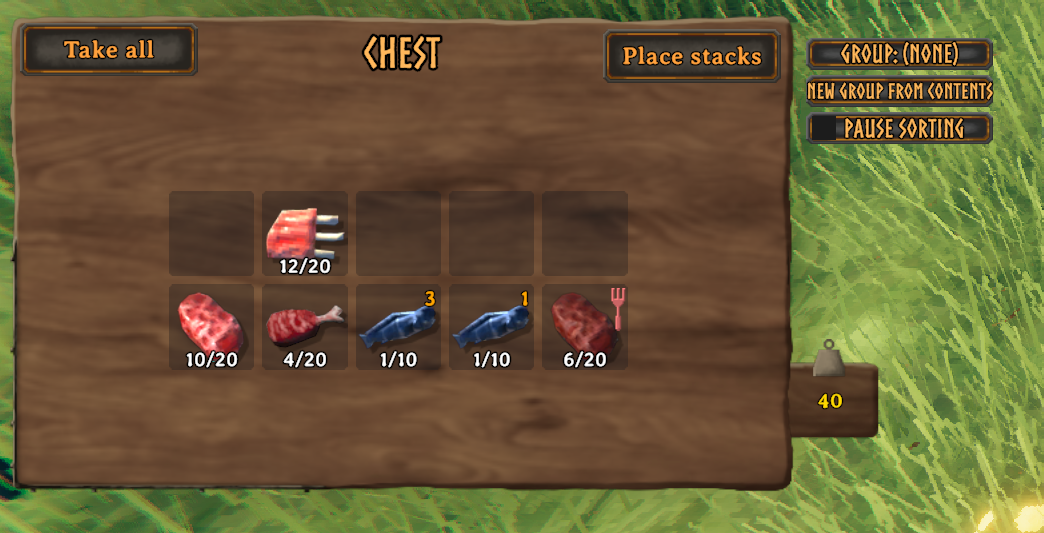
- Group: (none): click to open the group menu and pick a group for this chest. Hover to see the group chests nearby (closest first, marked if full or behind a ward edge) and which groups are Strict.
- New Group From Contents: makes a group from what's in the chest. The name is filled in for you from the item there is most of (for example "Wood"); press Enter, or type your own. The chest joins the new group and all its item types are added. If an item belonged to another group, it moves to this one and the game tells you.
- Pause sorting: while ticked, nothing moves in or out of this chest. Handy when you want to collect items first, for example ones that already belong to another group, before making a group from them. Turns off when you close the chest.
A chest with a group
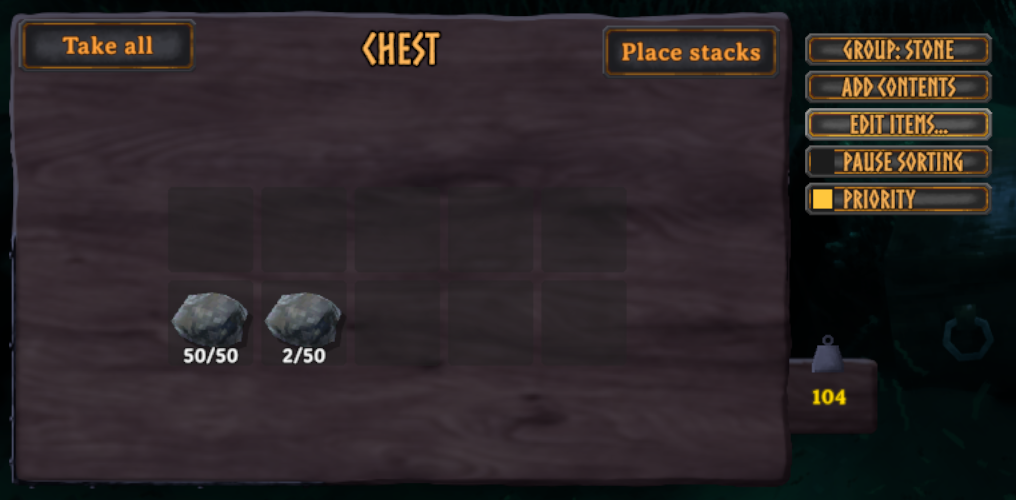
- Group: Stone: hover to see the group's items and the group chests nearby; click to open the group menu.
- Add Contents: adds this chest's item types to its group. The group keeps the items it already had. If an item belonged to another group, it moves to this one and the game tells you.
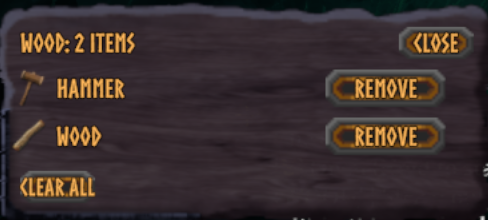
- Edit Items...: the group's item list. Remove single items, or use Clear all (click it twice) to start over.
- Pause sorting: same as above.
- Priority: this chest fills first. The group's other chests nearby also move their items into it whenever it has room (for example right after you take something out), so your stock gathers in one place. Tick it on the chest you use most. With several Priority chests in a group, items already in one of them stay there.
A Locked chest
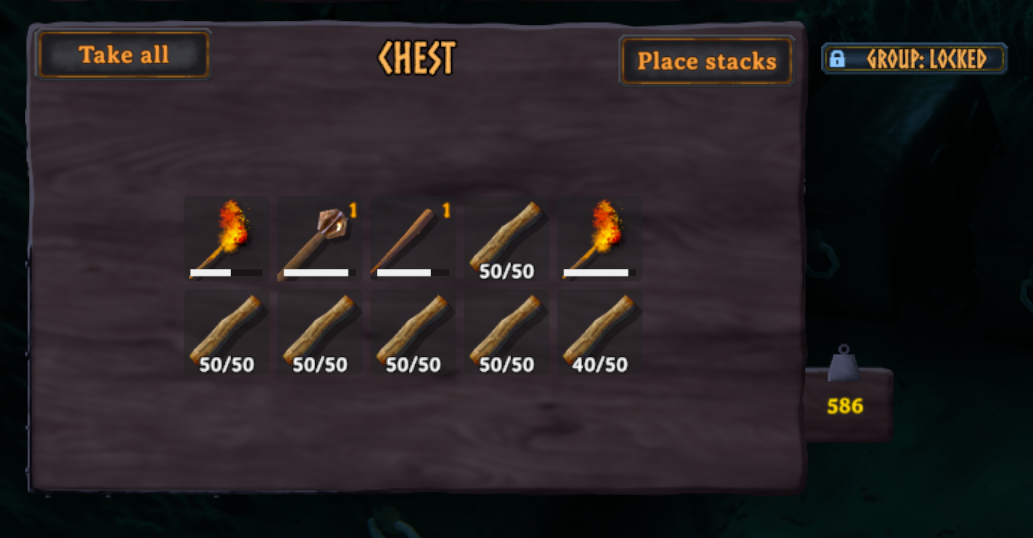
Put a chest in the built-in Locked group to keep it to yourself: nothing moves into or out of it automatically. You can still put items in and take them out by hand. Good for personal gear, boss loadouts, or materials saved for a build. A Locked chest only shows the Group button (blue, with a padlock); pick another group to unlock it.
The group menu
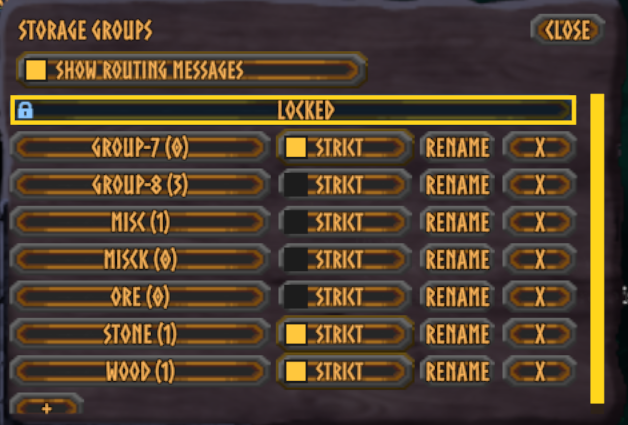
- Locked is always at the top. It's built in: it can't be renamed, deleted or given items. If your world already had a group called "Locked", it's now called "Locked (old)", with its chests and items unchanged.
- Every group, with how many item types it has. The one with the border is this chest's group; click it again to take the chest out of the group. + at the bottom of the list makes a new, empty group.
- Strict (per group, optional): a strict group's chests only keep the group's own items. Anything else goes to a chest of its own group nearby. If none has room, it goes to a nearby ungrouped chest, or failing that to a chest of a group that isn't Strict (never to a Locked chest). Without Strict, other items stay where they are.
- Rename, and X to delete a group. Deleting a group never deletes items; its chests just become ungrouped.
- Show routing messages (just for you): shows a short message every time an item is routed near you, like "Evicted 3 Stone to an ungrouped chest (7 m)". Handy to see what the mod is doing. Off by default.

Where items go
When an item lands in any chest, and a chest of that item's group is within 10 meters with room, the item moves there. Priority chests first, then the closest chest.
- If its group's chests are all full or too far away, the item stays put, unless the chest it landed in is Strict (see above). Nothing is lost.
- Items with no group stay where you put them, unless the chest is Strict.
- Locked chests are skipped completely: nothing leaves them, nothing is sent to them.
- Changing a chest's group re-checks everything in it.
- Hover over a chest to see its group, whether it's Strict, and whether it is inside a ward.
Where does an item go?
Highlights
From source dataLoaders
Runs on BepInEx.
Footprint
Rated a light load on a server.
Last update
Its author last shipped an update 32d ago.
StorageGroups on Nxeon
From our catalogue- One-click install
- Supported on Nxeon Valheim servers, for BepInEx servers. We download it from Thunderstore, place it, and restart the server.
- Server side
- Optional on the server
- Server type needed
- BepInEx
- Server load
- light
- Smallest plan we suggest
- Valheim — 4 GB (4 GB RAM). This follows our own load rating above, not a benchmark.
- Latest build
- 0.2.3, released 2026-10-04
Game versions by loader
| Loader | Game versions | Newest |
|---|---|---|
| BepInEx |
From 10 recorded builds of StorageGroups.
Recent builds
| Build | Released | Game versions | Loaders |
|---|---|---|---|
| 0.2.3 | 2026-10-04 | n/a | BepInEx |
| 0.2.2 | 2026-10-03 | n/a | BepInEx |
| 0.2.1 | 2026-10-03 | n/a | BepInEx |
| 0.2.0 | 2026-10-03 | n/a | BepInEx |
| 0.1.7 | 2026-09-28 | n/a | BepInEx |
| 0.1.6 | 2026-09-28 | n/a | BepInEx |
Dependencies
- Required: BepInExPack Valheim
Declared by the newest build that lists any. Required ones are installed with it on one-click installs.
Run StorageGroups on a Valheim server
Pick a server or deploy a new one above; it is installed in one click.
What kind of mod it is
From the catalogWeapons, items & crafting
New weapons, gear, items and the recipes to make them.
Works on a server
From source side supportThunderstore lists server-side support for StorageGroups as optional: it can run on a server, but isn’t required there.
Compatibility
- Game
- Valheim
- Loaders
- BepInEx
- Runs on
- Serveroptional on the server
- Requires
- One-click install needs a BepInEx server.
Verified at the source
- ✓ThunderstoreOfficial listing, checked 2026-10-04Open ↗
- ✓AuthorValheimQoL, as published on Thunderstore
- ✓LicenseNot published by the sourceFree