A backup you never tested isn't a backup. Build an automated, offsite, restorable backup routine for files and databases with rsync, cron and the 3-2-1 rule.
The only thing worse than losing data is discovering your backups don't restore. On a VPS you're responsible for your own data, and hardware, mistakes, and attacks all happen. This guide builds an automated backup routine that covers files and databases, stores copies offsite, and — crucially — is testable.
The 3-2-1 rule
Good backups follow a simple principle: 3 copies of your data, on 2 different media/locations, with 1 copy offsite. A backup sitting on the same VPS as the original protects you from an accidental rm, but not from the server dying. Always get at least one copy off the machine.
Back up databases correctly
Never just copy the raw database files while the server is running — you'll get corruption. Use a proper dump. For MySQL/MariaDB:
mysqldump --single-transaction --quick --lock-tables=false \
  -u backup -p'password' myapp | gzip > /backups/myapp-$(date +%F).sql.gz
For PostgreSQL:
pg_dump myapp | gzip > /backups/myapp-$(date +%F).sql.gzCreate a dedicated read-only backup DB user rather than using root — see secure a MySQL database.
Back up files with rsync
rsync copies only what changed, making it fast and cheap to run often:
rsync -aAX --delete /var/www/ /backups/www/The -aAX flags preserve permissions, ACLs, and extended attributes so a restore is faithful.
Get it offsite
Sync your local backups to another location — a second server, block storage, or object storage. To another server over SSH:
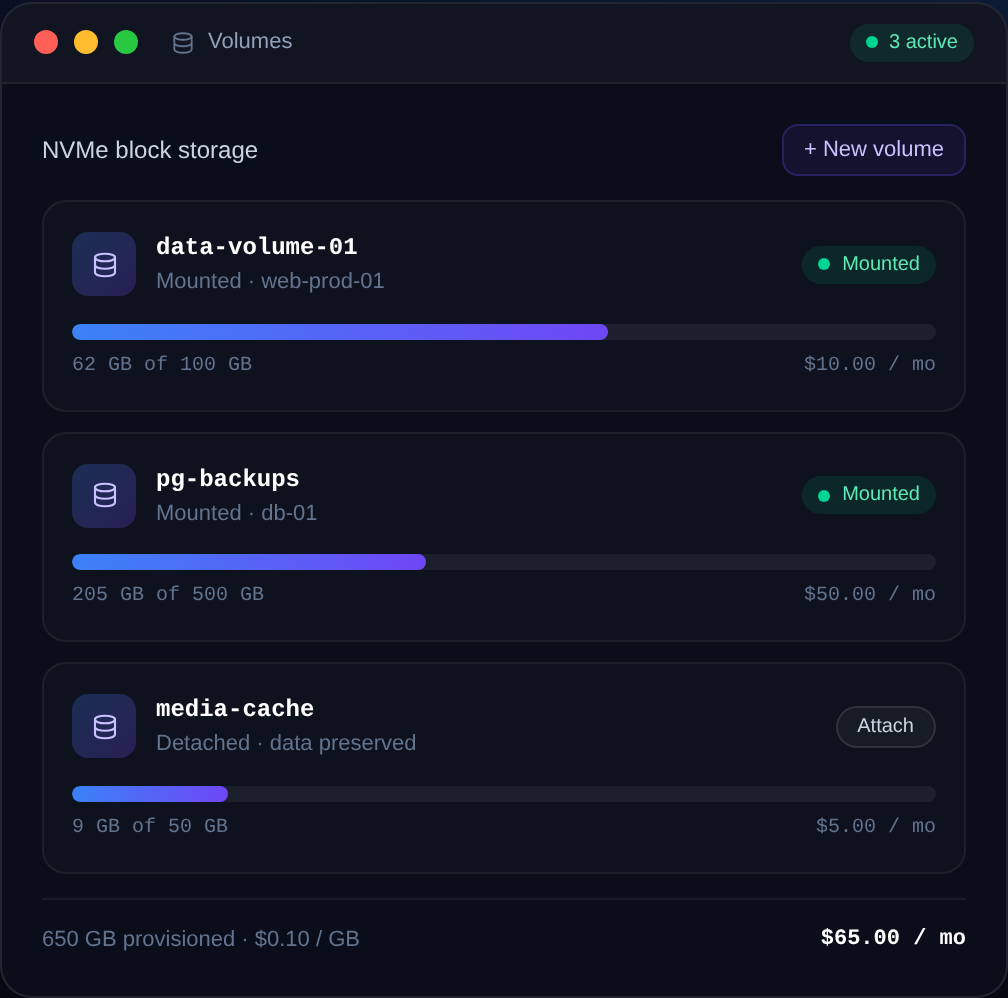
rsync -aAX -e ssh /backups/ backup@offsite-host:/srv/backups/mysite/Nxeon offers block storage volumes that make an easy second location on the same account but a separate volume.
Automate with cron
Put the commands in a script (e.g. /usr/local/bin/backup.sh), make it executable, then schedule it:
sudo crontab -eAdd a nightly job at 3 AM:
0 3 * * * /usr/local/bin/backup.sh >> /var/log/backup.log 2>&1Rotate old backups
Without rotation, backups eat your disk. Keep, say, 14 days and delete the rest:
find /backups -name '*.sql.gz' -mtime +14 -deleteWatch disk usage so backups don't fill the volume — see check and free up disk space.
Test your restores — for real
This is the step everyone skips. Regularly restore a backup to a scratch location and confirm the data is intact:
gunzip < /backups/myapp-2026-08-01.sql.gz | mysql myapp_restore_testAn untested backup is a hope, not a plan.
Full, incremental, and snapshot backups
Not all backups are the same, and mixing types gives you both efficiency and coverage:
- Full backups copy everything every time. Simple and self-contained, but heavy on space and time.
- Incremental backups copy only what changed since the last backup. Fast and space-efficient, but a restore needs the last full backup plus every increment since. Tools like
restic,borg, andrsnapshothandle this elegantly, with deduplication so unchanged data isn't stored twice. - Snapshots are point-in-time images of a whole volume or VPS, usually taken by your provider or the filesystem (LVM, ZFS, btrfs). They're great for fast whole-machine recovery but coarse — often you can't pull back a single file or table.
A solid strategy layers them: provider snapshots for disaster recovery of the whole box, plus granular file and database backups (ideally incremental) for restoring individual items. restic is a particularly good fit for a VPS because it deduplicates, encrypts, and pushes straight to object storage:
restic -r s3:s3.example.com/mybucket backup /var/www /etc
restic -r s3:s3.example.com/mybucket forget --keep-daily 7 --keep-weekly 4 --prune
Encrypt backups and secure the credentials
Backups contain your most sensitive data — databases, config, secrets — so an unencrypted backup in the wrong place is a breach. Encrypt them at rest (restic and borg do this by default), and treat the backup destination credentials as secrets. Give the backup process its own least-privilege access to the destination, and — importantly — protect against a compromised server deleting its own backups by using append-only or immutable storage where available. That way, even a full server compromise can't erase your recovery path. Test a restore from the encrypted copy so you know the keys and process work when it matters.
FAQ
How often should I back up?
Match your tolerance for data loss. Daily is a common baseline; hourly database dumps suit busy sites. The right cadence is "how much data can I afford to lose?"
Why not just snapshot the VPS?
Provider snapshots are great for whole-server recovery, but they're coarse and often can't restore a single file or table. Use snapshots *and* granular file/database backups.
Where should offsite backups live?
Anywhere physically separate from the origin — another server, a separate storage volume, or object storage. The point is surviving the loss of the primary machine.
How do I know my backups work?
Test-restore them on a schedule. If you've never restored a backup, assume it doesn't work until proven otherwise.
A backup routine that actually works
The difference between real protection and a false sense of security comes down to a few disciplines:
- Follow 3-2-1: three copies, two locations, one offsite.
- Dump databases properly (
mysqldump --single-transaction/pg_dump), never copy live files. - Use rsync or a deduplicating tool like restic/borg for efficient, incremental file backups.
- Get a copy off the machine — another server, block storage, or object storage.
- Automate with cron or a systemd timer, and log the output.
- Rotate old backups so they don't fill the disk.
- Encrypt backups and protect the destination against a compromised server deleting them.
- Test restores on a schedule — an untested backup is a hope, not a plan.
That last point is the one that fails silently and matters most: schedule an actual restore into a scratch database or directory and confirm the data is intact. Do that, and the day something goes wrong becomes a routine recovery instead of a catastrophe.
Automated, offsite, tested backups turn a disaster into an inconvenience. Store them cheaply with block storage, and if you're moving in, our free migration help can bring your data across. See also how to back up a VPS.

Cloud VPS hosting
Deploy in seconds, not weekends
Nxeon · Nxeon editorial
★★★★★ Straight-talking guides from the team that runs the servers.