
Logistics Insights
Get insights into what your logistics bots are doing and what to improve in your network. Provides concrete suggestions, an overview of what's in short supply and stats and information about robots charging, idle, picking up and delivering, information on items most frequently delivered, distance delivered, and the quality level of both robots and roboports. Supports multiplayer games and multi-network information, with easy navigation between them. Space Age is supported but not required.
Description
Logistics Insights
When playing Factorio, have you ever wondered what all of your logistics bots are up to? Whether you have too many, or too few? Whether you have enough storage? Particularly in the mid game, when everything is scaling up, the answers are often surprising.
Logistics Insights can help:
- Suggestions: Tells you what to do to improve a network, based on how it is performing
- Undersupply: Lists the items where demand consistently outstrips supply
- Multi-network: Keeps an eye on all your networks and jumps between them
- Multiplayer: Everyone sees the same data, so you can help each other out
- Real time: Shows what is happening in your networks right now
- Interactive: Most things are clickable, so you can go straight to the root of a problem
Quick info available
In the top left corner of the screen, you'll see two icons. 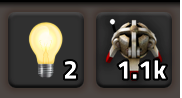
- The lightbulb shows how many Suggestions you have across all of the networks being analyzed. Click it to open or close the Networks window where you can see more detail.
- The logistics bot shows how many logistics bots are idle in your current network. If this gets to 0, you most likely don't have enough. Click it to open the main Logistics Insights window for much more detail about the network.
The two main windows
The main Logistics Insights window focuses on showing everything you need to know about a single bot network at a time, whether it's the one where you are or one you're looking at via the map view. 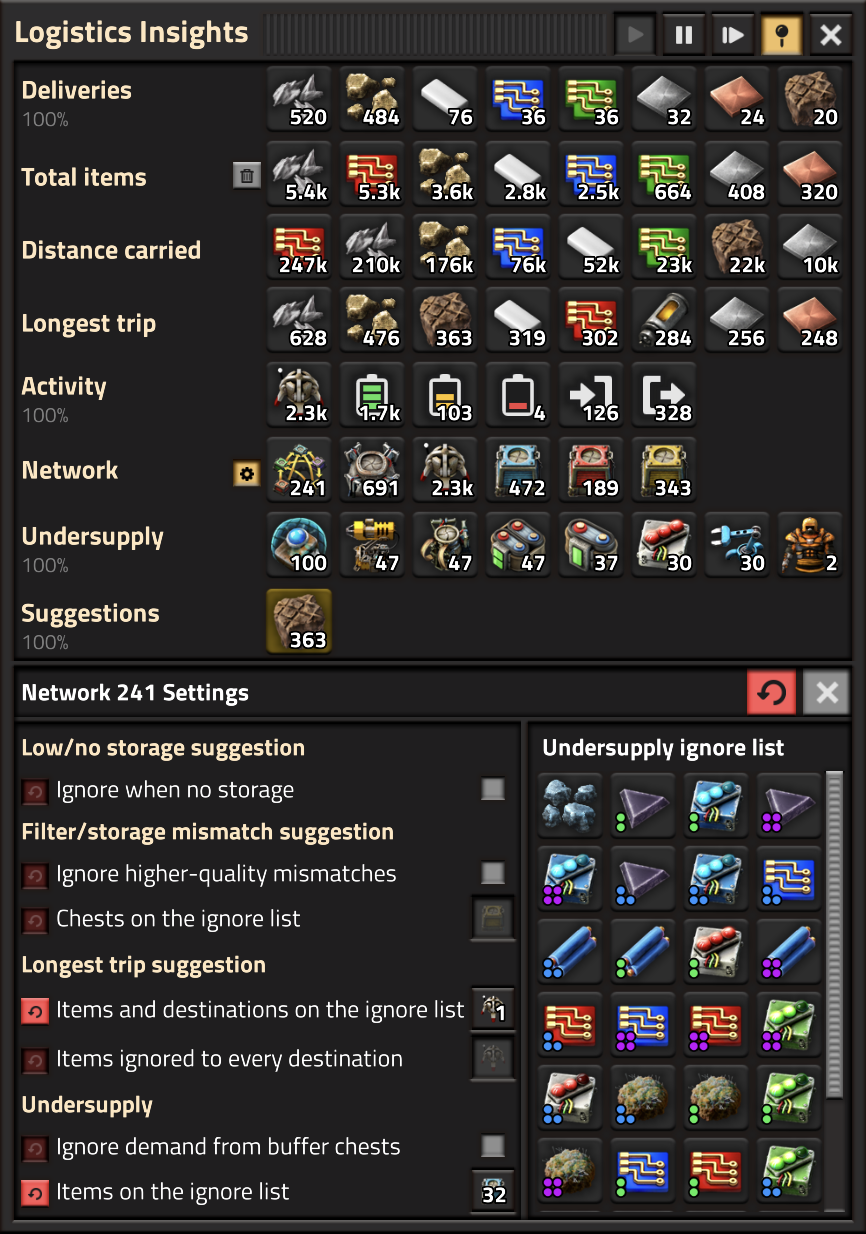
The Logistics Networks window shows all of the networks you've visited, with a few key highlights like number of bots, number of active suggestions and how many things are in short supply. You can also easily navigate between networks from here. Clicking the gear icon opens the Logistics Insights window with the settings pane below. 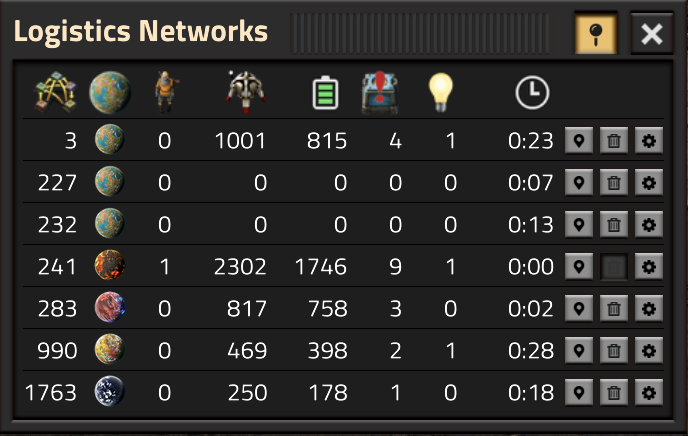
The main window supports the Pipette action ("Q" by default), which allows you to pick up a ghost of an entity shown. This is useful if you need to build or search for that item, for example using Factory Search.
Both windows have a pin button in the title bar. A pinned window stays open when you press E or Escape, so you can keep an eye on it while you play.
When the settings pane is open (you can also open it with the settings icon next to the Network row), you can see and edit the settings that apply to the current network.
How to use Undersupply information
In the Undersupply row, you can see items that have more demand than can be supplied in the network. This is useful to identify hard-to-spot bottlenecks. 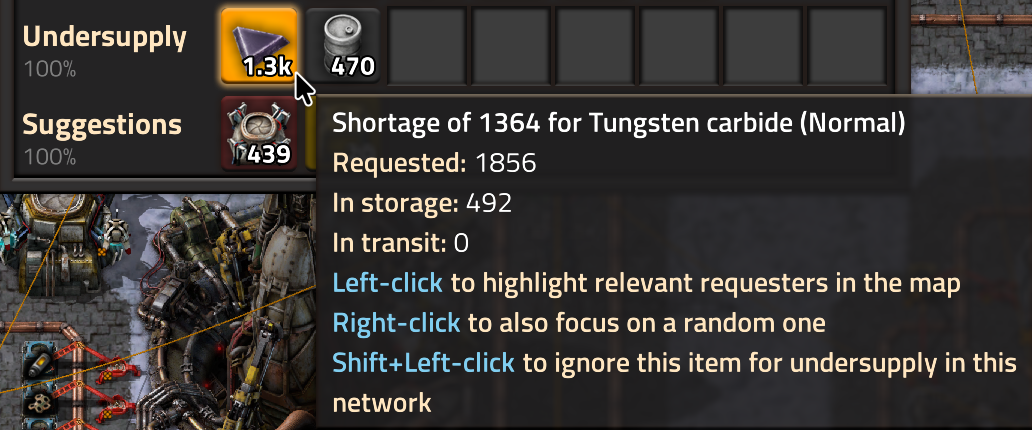
If you click on an item, LI will highlight every place that requests the item, and if you right-click, it will also zoom in and focus the map view on one of them. You can repeatedly right-click to get a sense for where the problems are.
If an item is shown in undersupply but you don't want to track it, you can Shift-click on the icon to ignore that item type in the current network. I find this useful when I have requests for "accidental" items that I want to capture somewhere, but where there is no real shortage.
How to use Suggestions
There are several types of suggestions, depending on what is happening in your network:
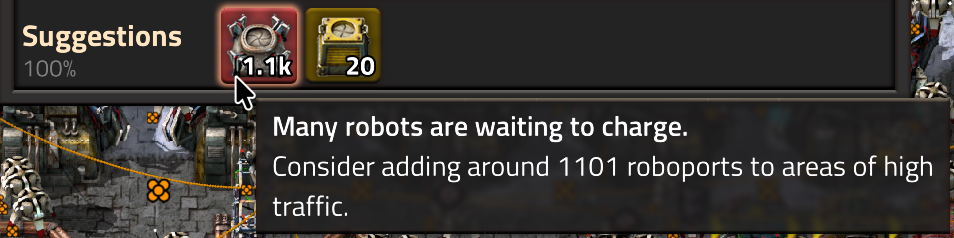
- Build more roboports. A common problem is that a lot of your bots are waiting to charge, which means that fewer bots are free to do useful work. Building more bots doesn't help though! Instead, build more roboports so the bots can quickly find a place to charge, without having to wait. LI will show this as a High priority suggestion if you need more than 100 additional roboports.
- Build more storage. If your storage is close to full, your network will work less efficiently as bots need to go further to find available storage. This suggestion shows up when your storage is 70% full, and becomes High priority when it's 90% full. Note that "fullness" of storage is measured by stacks, so you may have more storage available than LI suggests as it only looks for empty stacks. A network with no storage chests at all is told so instead; if that is how you want it, for a mall or an outpost say, tick Ignore when no storage in the network settings.
- Build more unfiltered storage. Filtered storage is great, but you may be running out of storage that isn't filtered. LI uses the same thresholds as for total storage here, and only makes this suggestion when some of your storage has a filter; without any, it would just repeat the one above.

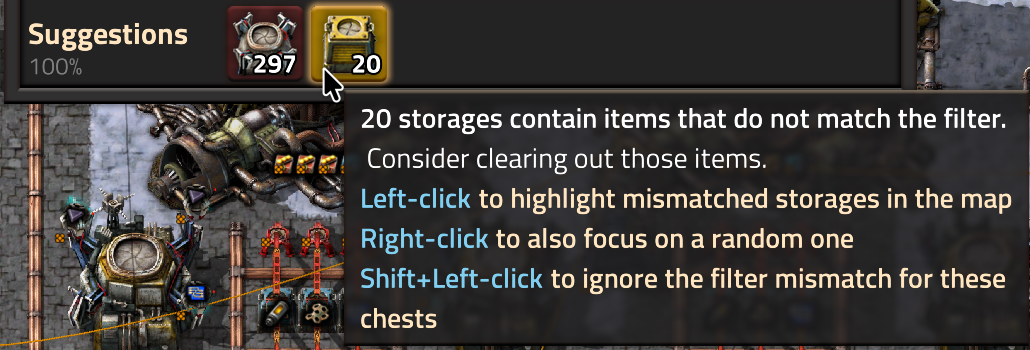
- Filtered storage mismatch. If your filtered storage has items that don't match the filter, LI suggests you fix it. You can click/right-click on the suggestion to see which chests show the problem, which is otherwise hard to find. If a mismatch doesn't matter to you, you can Shift-click on the cell to ignore the chests in question from flagging a mismatch.
- Too few bots. Sometimes you just don't have enough bots to do everything. This suggestion needs a network of at least 20 bots that have been 98% busy for a minute, and it stands down while bots are queuing to charge, because building more bots then only lengthens the queue.
Ratings & reviews
Sign in to leave a rating or comment.