





About Permanent Toolbox Object Saver
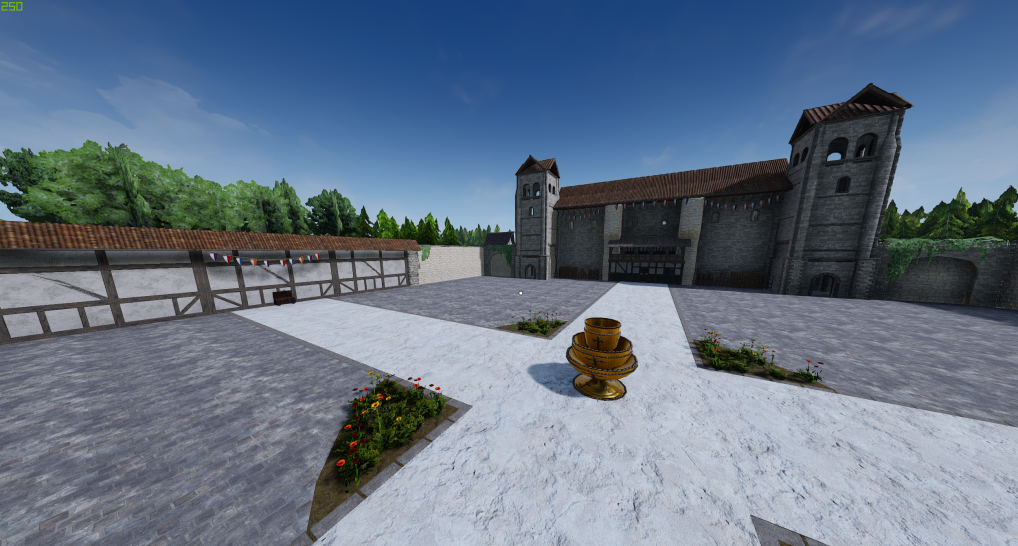
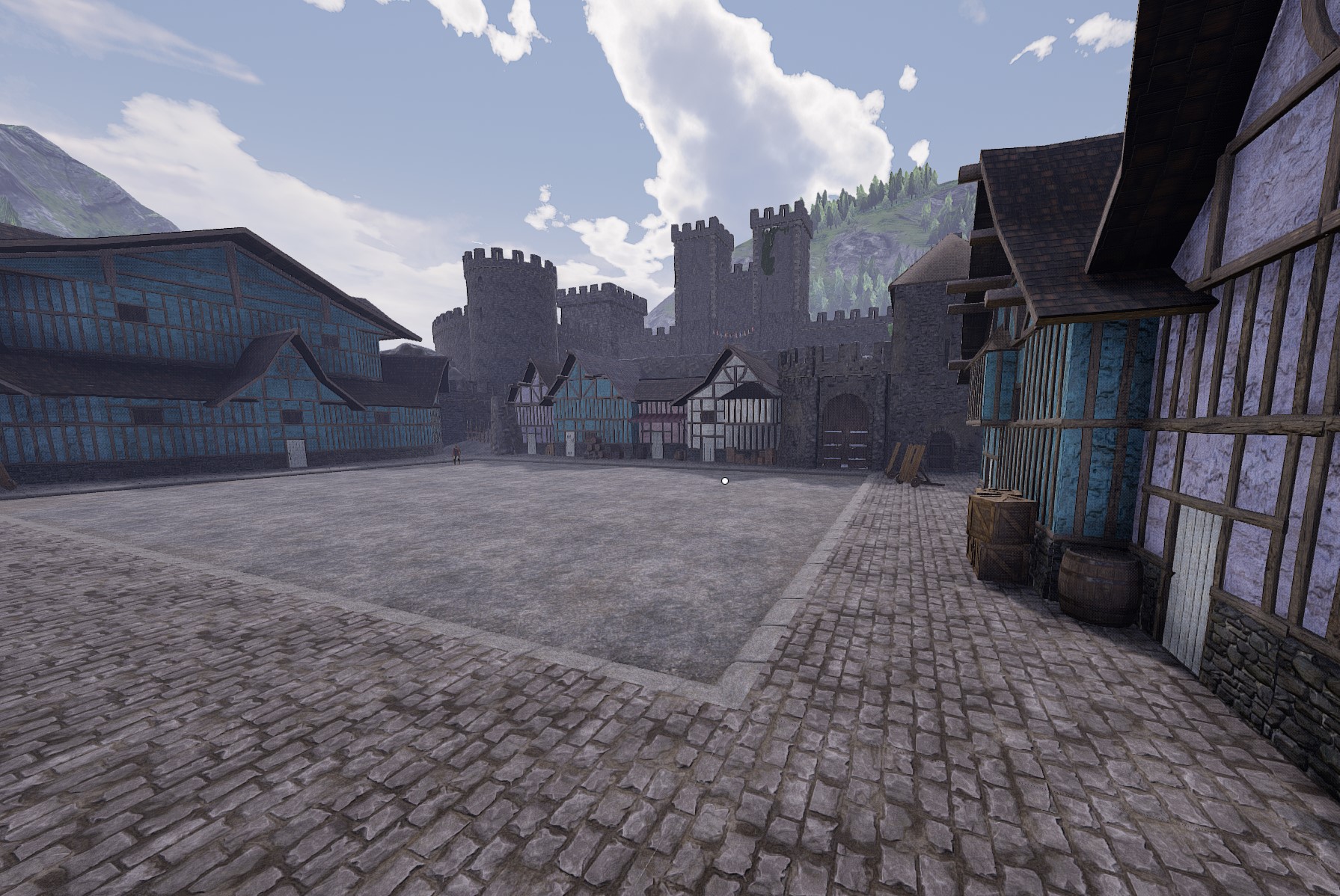
From mod.ioSimilar to ARMA 3 Zeus, GMOD sandbox, or UE4 editor but in game. Saves created by this mod may be saved and loaded while having it as a server sided only actor. Creating saves can be done in SDK, or in game, as long as the clients have the mod too.
INSTALLATION
Step 1: Under
[/Script/Mordhau.MordhauGameMode]
Add:
SpawnServerActorsOnMapLoad=/PermanentToolboxRW/PermaTB.PermaTB_C
Step 2: Under
[/Script/Mordhau.MordhauGameSession]
Add:
Mods=4955103
Step 3. Ensure that you are an admin on your own server
Step 4. Type anyone of the chat commands below to get started
SERVER SIDE ONLY ALTERNATE INSTALLATION INSTRUCTIONS
ONLY DO THIS WAY IF YOU DO NOT WANT YOUR SERVER TO BE LISTED AS MODDED
WARNING USING ".spawn r" WILL DISCONNECT ALL CLIENTS WHO DO NOT HAVE THIS MOD FILE MOUNTED IF THIS IS USED AS A SERVER SIDE ONLY MOD
6/4/2024, update released to make ".menu r" work on unmodded servers. Manual installation is required for clients for this to work for them.
Step 1, for both Server file, and Admin client's file
Create a custompaks folder inside of Mordhau>Content
Step 2, for both Server file, and Admin client's file
Extract pak from zip file below into Mordhau > Content > CustomPaks
Step 3, only for server
Under
[/Script/Mordhau.MordhauGameMode]Add:
SpawnServerActorsOnMapLoad=/PermanentToolboxRW/PermaTB.PermaTB_C
COMMANDS
.spawn r | Spawns a custom toolbox which can create objects that are able to be saved or loaded. Adding "house" after r will spawn a alternate toolbox which can spawn prebuilt buildings.
.save r | Saves objects that are currently placed. Adding anything after r will specify a save slot. Specified save slots will not auto load.
.load r | Loads objects. Adding anything after R will load a specified save.
.clear r | Clears all objects. Adding "newobjs" after R will delete newly placed objects. Adding anything else after R will clear objects loaded from a specified save.
.del r | Deletes the last placed object.
.togal r | Toggles auto loading on the current map. Default setting is true
.togaldef r | Toggles auto loading by default for all future maps loaded, any maps loaded prior to changing this will remain unchanged. Default setting is true
.usetb r | Tags all objects placed by user, and allows those objects to be saved and managed by this mod. This Is helpful in a scenario where toolboxes that are not from this mod are being used.
.menu r | Adds a menu to screen that can spawn anything in the games files
.help r | Shows a list of commands with a short description for each one
FAQ
Q: Can this be used as a server side only mod?
A: Clients without the mod will still load any objects that are managed by the mod, as long as the objects that this mod is loading is within the game's vanilla files. Commands like .menu r, and .spawn r will disconnect all clients who do not have the mod mounted. If using as a server mod, build saves first without non modded clients on.
Q: How do I go about adding content from other mods into this?
A: Any static mesh from any mod will load with no problems. Specific blueprint classes will have to be added manually. These can be added to the menu in game by using the favorite looked at item keybind, or by loading a map where these modded objects already exist. If the object cannot be saved via these methods, then it can be added by manipulating the client's game ini which can be found in "Appdata>Local>Mordhau>Saved>Config>WindowsClient".
Underneath [FavoriteActors] add List=objectpath. This is an advanced method, finding object paths requires using tools like UMODEL and manipulating the package paths found from there. Instructions for this can be found in the Generic Admin Menu Guide, underneath the, "How to find a weapons file path to get weapons from any mod into the menu", section.
Q: Can saves be shared?
A: Yes! To access your save files, please navigate to "Mordhau>Saved>SaveGames", inside of here, you will find files with a map name, saved, and a save identifier tag if it were specified. These save files can be shared simply by uploading that. People would have to drop the downloaded file in the same place.
BASIC HOW TO USE
Step 1. Follow instructions above
Step 2. Start by either typing ".spawn r" in chat or ".menu r"
Step 3. Place objects using either of these options
Step 4. Save these objects by typing ".save r"
Step 5. Whatever you have placed will now autoload whenever this map loads. This can be disabled on this map by typing ".togal r"
MENU KEYBINDS
type .menu r in chat first.
L to hide or open menu. Press console bind to show mouse.
MODKEY is whatever key is set in the menu. Default is thumbmouse2
MODKEY + Z = Favorite asset that is currently looked at
MODKEY + X = Updates preview, add optional SHIFT to make rotation of preview use both X and Y rotation instead of just Z
MODKEY + C = Create object based on preview
MODKEY + V = Delete object, must be an asset managed by mod.
MODKEY + ALT = Clear offset textboxes
MODKEY + G = Group select objects. Used to group objects for duplication, or easy deletion.
Highlights
From source dataFootprint
Rated a light load on a server.
Last update
Its author last shipped an update 17 mo ago.
Permanent Toolbox Object Saver on Nxeon
From our catalogue- One-click install
- Not available. One-click install isn't available for this game's mods yet. Download it and upload it to your server in Files.
- Server load
- light
- Smallest plan we suggest
- Mordhau — 4 GB (4 GB RAM). This follows our own load rating above, not a benchmark.
- Latest build
- 1.5.1, released 2025-06-23
Run Permanent Toolbox Object Saver on a Mordhau server
Deploy a server above, then upload the file in Files.
What kind of mod it is
From the catalogServerside Only
Its source category doesn’t say more about what it does, so NxLabs lists it under Other.
Compatibility
- Game
- Mordhau
Verified at the source
- ✓mod.ioOfficial listing, checked 2026-10-30Open ↗
- ✓AuthorSquackety2, as published on mod.io
- ✓LicenseNot published by the sourceFree