
Get professional you@yourdomain.com email working, whatever your options — managed provider or self-hosted. The DNS records, the trade-offs, and the setup path.
A you@yourdomain.com address looks far more credible than a free Gmail handle, and setting one up is mostly a matter of DNS. This guide covers both routes — a managed provider or self-hosting — the exact records each needs, and how to verify it's live.
Choose your path
- Managed provider (Google Workspace, Microsoft 365, or a host's mailboxes): easiest, best deliverability, small monthly fee. You add DNS records they give you.
- Self-hosted (Postfix/Dovecot or Mailcow on a VPS): full control, no per-mailbox fee, but you own reputation, security and reverse DNS.
For most businesses, managed wins on time and deliverability. Self-hosting suits developers who want control and already run a VPS. This guide handles the DNS common to both; the concept overview is in business email for a domain registered anywhere.
Step 1: Point your MX records
MX (Mail eXchange) records tell the world which server receives mail for your domain. They're the heart of email DNS. For a self-hosted server:
example.com. MX 10 mail.example.com.The 10 is priority (lower = tried first). mail.example.com needs its own A record. For Google Workspace, Google gives you a single MX (or five legacy ones) — see how to set up MX records for Google Workspace. Only ever use one provider's MX set at a time.
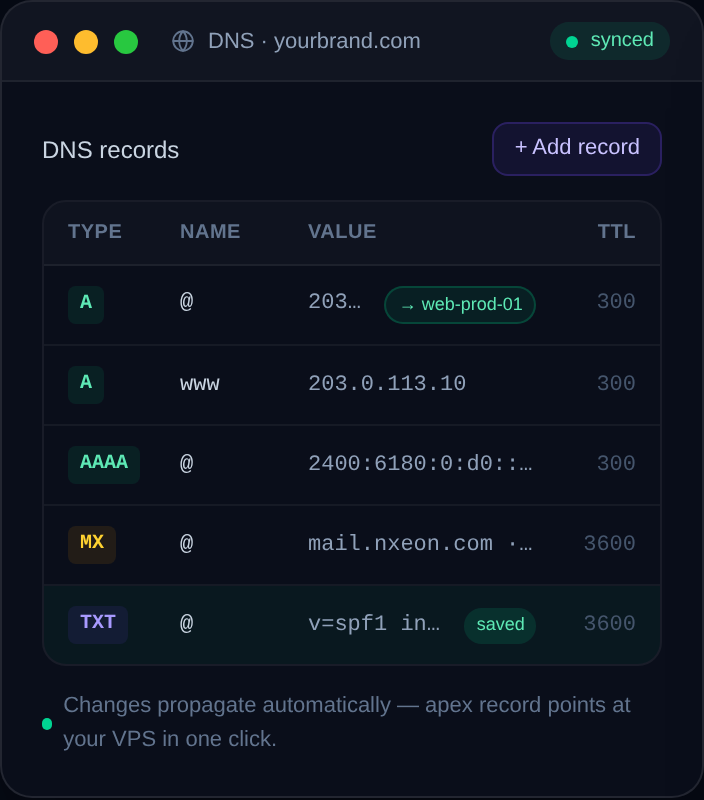
Step 2: Add authentication records
Receiving mail needs MX; *sending* mail that reaches inboxes needs SPF, DKIM and DMARC:
- SPF:
example.com TXT "v=spf1 include:_spf.google.com ~all"(or your server's IP) - DKIM: a TXT record at a selector, signing your outgoing mail
- DMARC:
_dmarc.example.com TXT "v=DMARC1; p=none; rua=mailto:dmarc@example.com"
Do all three — the step-by-step is how to set up SPF, DKIM and DMARC step by step. Skipping them means your mail lands in spam; see how to stop your emails going to spam.
Step 3: Create mailboxes and users
With a managed provider you add users in their admin console. Self-hosting, you create system or virtual mailboxes in Postfix/Dovecot (or via Mailcow's UI). Decide your addresses up front: hello@, support@, billing@, and personal ones like jane@.
Step 4: Set reverse DNS (self-host only)
If self-hosting, set the PTR for your sending IP to your mail hostname — without it, big providers reject you. Steps: how to set up reverse DNS (PTR) for a mail server.
Step 5: Verify
dig example.com MX +short
dig example.com TXT +short
Send a test both ways — out to a Gmail account and back in — and check the headers show SPF/DKIM/DMARC passing. If you only need to *receive* and want to keep using Gmail to read and reply, forwarding is simpler: how to forward custom domain email to Gmail.
Plan your addresses and aliases first
Before creating anything, sketch the addresses your business needs so you don't rework it later:
- Role addresses:
hello@,support@,billing@,careers@— usually aliases pointing to a real person or a shared inbox, not separate paid mailboxes. - Personal mailboxes:
jane@,sam@— one real mailbox per team member. - Distribution/groups:
team@fanning out to several people.
Most providers charge per mailbox but let you add aliases free, so map role addresses to aliases to keep costs down. A catch-all can scoop up everything else, though explicit aliases invite far less spam.
Migrating existing mail
If you're moving from another provider (or a free Gmail), plan the cutover so you don't lose mail mid-switch:
- Create the mailboxes on the new provider first, before touching MX.
- Import old mail — most providers offer an IMAP migration tool that copies existing messages across.
- Lower your MX TTL a day ahead to 300 seconds.
- Switch the MX records to the new provider and delete the old ones.
- Watch both inboxes for a day — a few stragglers may arrive at the old host until caches expire.
Because mail follows MX records, the website's A record is untouched throughout. The DNS mechanics are in how to set up MX records for Google Workspace if that's your destination.
Managed vs self-hosted: an honest comparison
- Managed (Workspace, 365, a host's mailboxes): deliverability is handled, security patches and reverse DNS are their problem, and setup is a few DNS records. You pay per mailbox and have less control. Best for most businesses.
- Self-hosted (Postfix/Dovecot, Mailcow): no per-mailbox fee, total control, unlimited addresses — but *you* own reputation, blocklist fights, spam filtering, rDNS and patching. Realistic only with a static IP and time to maintain it. Start with how to set up DKIM on a self-hosted mail server and how to set up reverse DNS (PTR) for a mail server.
The deciding question is usually time, not money: managed email costs a little cash and almost no maintenance; self-hosting costs no per-seat fee but real ongoing attention.
FAQ
Do I need to host my website and email on the same server?
No. MX records are independent of your website's A record. You can run the site on a VPS and email on Google Workspace, or vice versa.
Is self-hosting email worth it?
Only if you want control and can maintain reputation, security patches and reverse DNS. For most people a managed mailbox is cheaper in time and far better for deliverability.
Can I keep my domain at one registrar and email elsewhere?
Yes. Email follows your MX records wherever your DNS is hosted, regardless of who you registered the domain with.
How many mailboxes can I have?
As many as your provider plan allows, or unlimited if self-hosting (bounded by your server resources). Aliases and catch-alls extend this without extra mailboxes.
Can I use my domain for email before the website is ready?
Yes — email and web are independent. You can set up MX, SPF, DKIM and DMARC records and start sending and receiving on you@yourdomain.com long before there's any website at the domain, because mail servers only look at MX records while browsers only look at A records. Many businesses register a domain, stand up professional email immediately, and add the website weeks later. The reverse is equally true: you can launch a site with no email configured. If someone visits the bare domain before the site exists, they'll just see a placeholder or nothing, which has no effect on mail. So there's no reason to wait — get the email records in place whenever you're ready and let the website follow on its own timeline.
Skip the reverse-DNS and reputation headaches with managed Nxeon business email on your domain — or run the whole stack yourself on a fast NVMe VPS.
Register a domain
Deploy in seconds, not weekends
Nxeon · Nxeon editorial
★★★★★ Straight-talking guides from the team that runs the servers.