






About Build Vision 3.0
From Steam WorkshopThis is a quick access context menu, based on the [url=https://steamcommunity.com/sharedfiles/filedetails/?id=756792814]original Build Vision by Jimmacle , designed to supplement the game's terminal.…
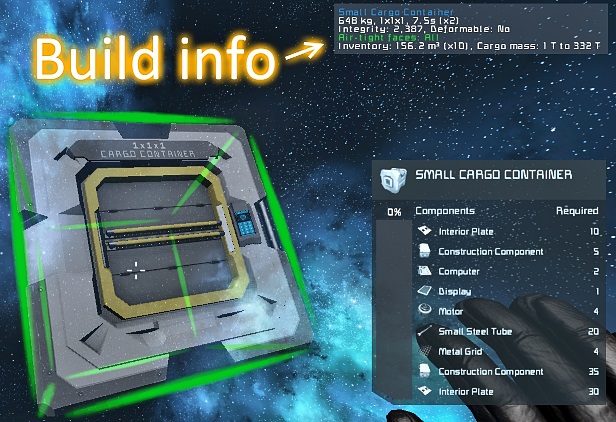
This is a quick access context menu, based on the original Build Vision by Jimmacle, designed to supplement the game's terminal. Most of the time, the terminal works just fine for setting up blocks, but sometimes, it's cumbersome. With BV, you can just point and click at a block and have immediate access to its settings, no need to go find a button panel and search for a name you likely can't remember.
Usage
This menu opened by aiming at the desired block and pressing either Ctrl + MwUp or Ctrl + MwDn. The first opens the wheel menu; the second opens the older list-style menu. Holding Ctrl (peek) will show a summary of the target block's current status without opening the controls. Pressing the right mouse button (Back/Cancel) will close the menu.
By default, the menu will close if you move more than 10 meters 4 large blocks from your target block. The exact distance can be customized in the settings.
Main Binds
[table] [tr] [th]Name[/th] [th]Controls[/th] [/tr] [tr] [td]Open Wheel[/td] [td]Control + MouseWheelUp[/td] [/tr] [tr] [td]Open List[/td] [td]Control + MouseWheelDown[/td] [/tr] [tr] [td]Select/Confirm[/td] [td]LeftButton[/td] [/tr] [tr] [td]Back/Cancel[/td] [td]RightButton[/td] [/tr] [tr] [td]Scroll Up[/td] [td]MouseWheeUp[/td] [/tr] [tr] [td]Scroll Down[/td] [td]MouseWheelDown[/td] [/tr] [/table]
Selection: There are two ways to highlight properties: scrolling or by gesturing with the mouse. To select with the mouse, hold Ctrl (Peek), and move your mouse either clockwise or counterclockwise, like you're tracing a circle.
Pressing Select/Confirm will open the highlighted property. Pressing that bind again will confirm any changes. Pressing Back/Cancel will close the property without saving changes; pressing it again will close the menu.
Note: The list menu only supports scrolling with the mouse wheel (or scroll binds).
Changing Settings: Properties can be changed using the scroll wheel in conjunction with the multiplier binds listed below, with text-only fields being the only exception.
Alternatively, holding Ctrl will allow you to use your mouse cursor to change settings. Depending on the use case, this is often easier.
Text: Text fields are opened/closed with chat (Enter) and support the usage of the usual Ctrl+A/X/C/V binds to select, cut, copy and paste text. Fair warning: you'll only be able to copy text within Build Vision; it won't work with the terminal or anything else.
Opening chat (pressing Enter) while a text field is highlighted will open text input automatically.
Note: Most numerical fields also support text input.
Modifier/Multiplier Binds
The multiplier binds are used to change the speed a selected property will change with each tick of the scroll wheel, 1/10th normal, 5x normal, 10x, etc. The base rate is proportional to the maximum value of the selected property. If you have a thruster override selected (probably with a maximum in the millions) that’s going to change in much larger increments than the targeting range of a turret (with a max around 800 meters, usually).
The MultX bind, Ctrl by default, can also be used to scroll through the list faster. Just hold it down while scrolling.
[table] [tr] [th]Name[/th] [th]Controls[/th] [/tr] [tr] [td]MultX/Peek (x0.1 for float values, x8 for colors)[/td] [td]Control[/td] [/tr] [tr] [td]MultY (x5 for float values, x16 for colors)[/td] [td]Shift [/td] [/tr] [tr] [td]MultZ (x10 for float values, x64 for colors)[/td] [td]Control + Shift[/td] [/tr] [/table]
Property Duplication Shortcuts
Property or settings duplication, as the name implies, is used to copy settings from one block to another. The binds below can be used to quickly copy settings, but there are buttons for these controls in the wheel menu as well.
The paste bind can be used while peeking, meaning if you've already copied properties, you can paste them using the shortcut below w/o reopening the controls.
[table] [tr] [th]Name[/th] [th]Controls[/th] [/tr] [tr] [td]Start Dupe[/td] [td]Ctrl + Alt + MouseWheelUp[/td] [/tr] [tr] [td]Stop Dupe[/td] [td]Ctrl + Alt + MouseWheelDown[/td] [/tr] [tr] [td]Toggle Dupe[/td] [td]Home[/td] [/tr] [tr] [td]Select All[/td] [td]Insert[/td] [/tr] [tr] [td]Copy Selection[/td] [td]PageUp[/td] [/tr] [tr] [td]Paste Copied Properties[/td] [td]PageDown[/td] [/tr] [tr] [td]Undo Paste[/td] [td]Delete[/td] [/tr] [/table]
When selecting properties from the list, pressing the back bind will take you back to the wheel menu to finish copying.
Customization / F2 Menu
The settings menu, by default, can be opened by pressing F2. This menu allows you to configure block targeting, change UI settings, configure your keybinds, and allows you to enable/disable legacy mode.
Legacy mode reverts the control scheme to the one used for v2.5 and changes the peek popup to match the old appearance.
Chat Commands
The chat commands in this mod are largely redundant; the functionality they provide is also provided by the settings menu. If you prefer to use the chat commands for whatever reason, here they are:
Highlights
From source dataFootprint
A 2 MB download, rated a light load on a server.
Last update
Its author last shipped an update 10 mo ago.
Build Vision 3.0 on Nxeon
From our catalogue- One-click install
- Not available. One-click install isn't available for this game's mods yet. Download it and upload it to your server in Files.
- Server load
- light
- Smallest plan we suggest
- Space Engineers — 8 GB (8 GB RAM). This follows our own load rating above, not a benchmark.
- Latest build
- 2025-12-07, released 2025-12-07, 2 MB
Game versions by loader
| Loader | Game versions | Newest |
|---|---|---|
| Workshop |
From 1 recorded build of Build Vision 3.0.
Dependencies
- Required: Rich HUD Master
Declared by the newest build that lists any. Required ones are installed with it on one-click installs.
Run Build Vision 3.0 on a Space Engineers server
Deploy a server above, then upload the file in Files.
What kind of mod it is
From the catalogBuilding & decoration
Blocks, furniture, decorations and building tools.
Compatibility
- Game
- Space Engineers
- File size
- 2 MB
Verified at the source
- ✓Steam WorkshopOfficial listing, checked 2026-10-10Open ↗
- ✓AuthorDark Helmet, as published on Steam Workshop
- ✓LicenseNot published by the sourceFree