




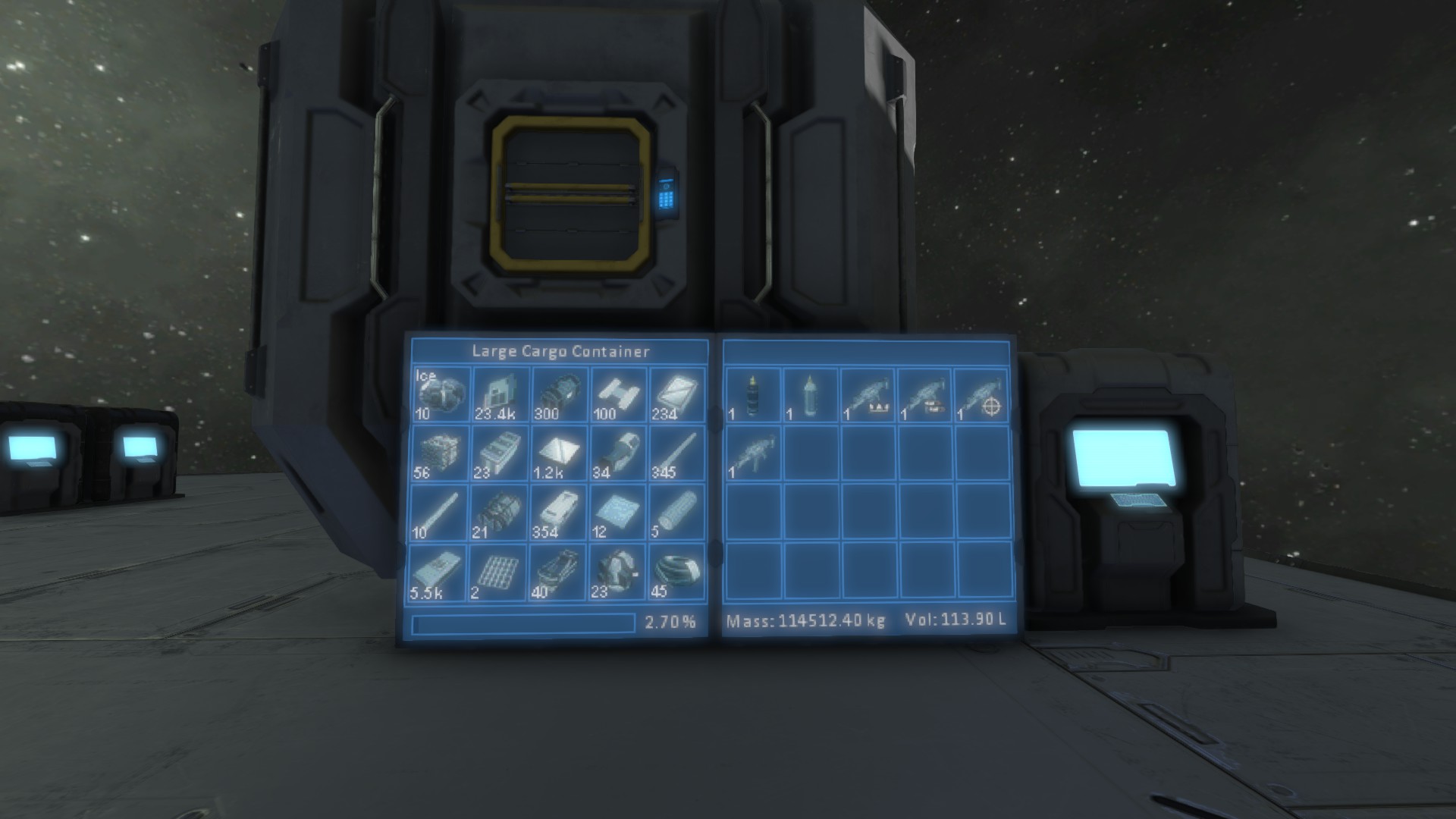

About Inventory Viewer
From Steam WorkshopSetup Required blocks: FIRST and at all points henceforth - make sure all blocks are set to be owned by you. 1. Programming Block The programming block needs to be loaded with "Inventory Viewer",…
Setup
Required blocks:
FIRST and at all points henceforth - make sure all blocks are set to be owned by you.
1. Programming Block The programming block needs to be loaded with "Inventory Viewer", checked (compiled), and remembered (saved)
2. Primary LCD panel
Add the tag "[LCD_CARGO]" anywhere in the front or back of LCD panel(s) name. Example: "LCD Panel 20 [LCD_CARGO]" Insert the name of the container / refinery / group name / etc. in CustomData field. Example: "Large Cargo Container 2"
3. Secondary(s) LCD panel (optional)
Add the tag "[LCD_CARGO]" anywhere in the front or back of LCD panel name. Example: "LCD Panel 21 [LCD_CARGO]" Insert the name of primary LCD pane in CustomData field. Example: "LCD Panel 20 [LCD_CARGO]" or "LCD Panel 20 [LCD_CARGO]:2", where 2 is order
Done.
Customizable colors
Primary LCD panel, CustomData example:
[table] [tr] [td]  [/td] [td] backgroundcolor = saddlebrown bordercolor = black headercolor = saddlebrown cellcolor = dimgray emptycellcolor = gray progressbarcolor = dimgray [/td] [/tr] [tr] [td]
 [/td] [td] backgroundcolor = midnightblue bordercolor = roalblue headercolor = midnightblue progressbarcolor = dimgray [/td] [/tr] [tr] [td]
 [/td] [td] backgroundcolor = darkgreen bordercolor = mediumseagreen headercolor = darkgreen cellcolor = darkslategray emptycellcolor = darkslategray progressbarcolor = dimgray [/td] [/tr] [tr] [td]
 [/td] [td] backgroundcolor = black bordercolor = mediumseagreen headercolor = black cellcolor = darkslategray emptycellcolor = darkslategray progressbarcolor = dimgray [/td] [/tr] [tr] [td]
 [/td] [td] backgroundcolor = black bordercolor = goldenrod headercolor = black cellcolor = maroon emptycellcolor = maroon progressbarcolor = dimgray [/td] [/tr] [tr] [td]
 [/td] [td] backgroundcolor = black bordercolor = darkgoldenrod headercolor = black cellcolor = black emptycellcolor = black progressbarcolor = dimgray [/td] [/tr] [/table]
Table of available named colors:
http://www.nbdtech.com/images/blog/20080427/AllColors.png
Table size
size=5x5
Maximum size of 5x5 cells, minimum 1x1

You can disable autoscaling:
autoscale=false
You can then set the position and size of the table manually. (change the font size and text padding)
Custom title
title = "My Custom Title"
This option also causes the script to display the title at a non-standard table size.

Displays in the cockpits and other blocks
Add to cockpit name "[LCD_CARGO]", just like you did for the panels.
In CustomData, you need to add parameters for the displays as follows:
[LCD1] Large Cargo Container 2 size=5x3
[LCD2] Large Cargo Container 3
Here: [LCD1] - the parameters of the first display, [LCD2] - the parameters of the second, etc.
Examples:
[table] [tr] [td]  [/td] [td] [LCD1] Large Cargo Container size=5x3 title=Cargo
[LCD2] Assembler 2 size=5x3 title=Assembler
[LCD3] Assembler 2 size=5x3 title=Production [/td] [/tr] [tr] [td]  [/td] [td] [LCD2] Medium Cargo Container size=3x2
[LCD3] Medium Cargo Container 2 size=3x2 [/td] [/tr] [tr] [td]  [/td] [td] [LCD1] Assembler 2 size=5x3 [/td] [/tr] [/table]
Modded items
Add entry in CustomData of programming block:
SubtypeName_TypeId#RLE_Encoded_Image;
RLE_Encoded_Image: to create, use my converter http://1530.ru/software/SEImage2LCD.zip (size 32х32, monospace font, RLE Encoding)
Example: icons pack from Stargate mod http://1530.ru/software/StargateIcons.txt Stargate mod: http://steamcommunity.com/sharedfiles/filedetails/?id=754173702
Example 2, overriding the standard icons: icons pack from HD COLORED TOOLS ICONS mod http://1530.ru/software/ColoredToolsIcons.txt HD COLORED TOOLS ICONS mod: http://steamcommunity.com/sharedfiles/filedetails/?id=804291375

Colorful Items In The Inventory http://pastebin.com/1kx5CkLN Mod: http://steamcommunity.com/sharedfiles/filedetails/?id=801185519 Thanks @Morphik
Highlights
From source dataFootprint
Rated a light load on a server.
Last update
Its author last shipped an update 5 yr ago.
Inventory Viewer on Nxeon
From our catalogue- One-click install
- Not available. One-click install isn't available for this game's mods yet. Download it and upload it to your server in Files.
- Server load
- light
- Smallest plan we suggest
- Space Engineers — 8 GB (8 GB RAM). This follows our own load rating above, not a benchmark.
- Latest build
- 2021-06-02, released 2021-06-02
Game versions by loader
| Loader | Game versions | Newest |
|---|---|---|
| Workshop |
From 1 recorded build of Inventory Viewer.
Run Inventory Viewer on a Space Engineers server
Deploy a server above, then upload the file in Files.
What kind of mod it is
From the catalogQuality of life & UI
Small conveniences, tweaks and interface improvements players notice straight away.
Compatibility
- Game
- Space Engineers
Verified at the source
- ✓Steam WorkshopOfficial listing, checked 2026-11-01Open ↗
- ✓AuthorSpeedy Gonzales, as published on Steam Workshop
- ✓LicenseNot published by the sourceFree