





About More LCD Apps (No Pb) - DISCONTINUED - Advanced Cockpit Displays
From Steam WorkshopDISCONTINUED - May contain bugs, not getting updated. A collection of LCD display scripts for monitoring your vehicles and ships in Space Engineers. Display real-time information about performance,…
DISCONTINUED - May contain bugs, not getting updated.
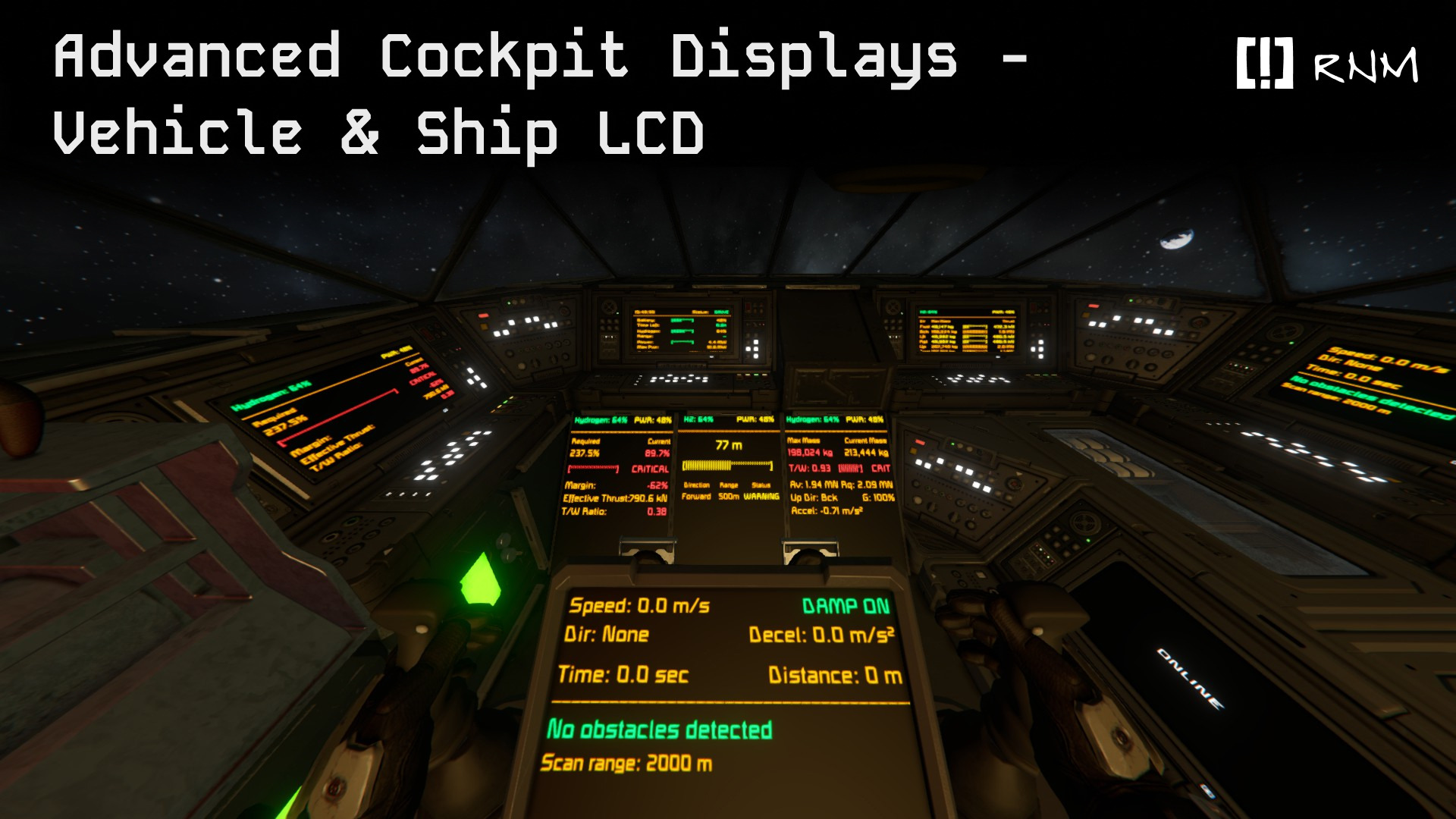
A collection of LCD display scripts for monitoring your vehicles and ships in Space Engineers. Display real-time information about performance, cargo capacity, power efficiency, and navigation directly on cockpit screens or LCD panels. NO Programmable Blocks (PB) needed. This is a mod
This mod was heavily inspired by Mahtrok's "MahInd - Info LCDs (No Pb)" and current version [IN DEVELOPMENT] InfoLCD - Apex Update made by Godimas. I added only apps that were not in the original mod so it wouldn't make it obsolete and take away the credit.
[hr][/hr]
Available Apps
[table] [tr] [th]App Name[/th] [th]Display Name[/th] [th]Description[/th] [/tr] [tr] [td]Vehicle Performance Monitor[/td] [td][!] Vehicle Performance[/td] [td]Shows speed, acceleration, braking distance, P/W ratio, current slope angle, and maximum climbable slope. Features a visual slope indicator bar.[/td] [/tr] [tr] [td]Vehicle Cargo Monitor[/td] [td][!] Vehicle Cargo Monitor[/td] [td]Displays dry mass, cargo weight, total mass, maximum recommended capacity, remaining capacity, and P/W rating with visual bars.[/td] [/tr] [tr] [td]Vehicle Efficiency[/td] [td][!] Vehicle Efficiency[/td] [td]Monitors battery charge, hydrogen tank levels, and current power consumption/production with visual indicators.[/td] [/tr] [tr] [td]Thrust Vector Balance[/td] [td][!] Thrust Vector Balance[/td] [td]Displays thrust distribution across all 6 directions (Forward, Backward, Up, Down, Left, Right) with visual bars showing balance and available thrust.[/td] [/tr] [tr] [td]Thrust-to-Weight Ratio[/td] [td][!] Thrust to Weight Ratio[/td] [td]Shows T/W ratio for all 6 directions, indicating ship's acceleration capability and gravity performance.[/td] [/tr] [tr] [td]Stop Distance Calculator[/td] [td][!] Stop Distance Calculator[/td] [td]Calculates braking distance based on current speed and available reverse thrust. Useful for collision avoidance. If contact is imminent, it will display a warning screen.[/td] [/tr] [tr] [td]Proximity Sensor[/td] [td][!] Proximity Sensor[/td] [td]Displays distance to nearest object using ship sensors. Visual warning system for collision prevention.[/td] [/tr] [tr] [td]Ion Minimum Altitude[/td] [td][!] Ion Min Altitude[/td] [td]Shows minimum altitude where ion thrusters become effective (atmospheric density indicator).[/td] [/tr] [tr] [td]Atmospheric Maximum Altitude[/td] [td][!] Atmospheric Max Altitude[/td] [td]Displays maximum altitude where atmospheric thrusters remain functional.[/td] [/tr] [/table]
How to Use
[olist] [*]Select a Text Surface (cockpit screen or LCD panel) [*]Open the surface settings [*]Choose one of the apps from the "Script" dropdown menu [*]Adjust settings in the block's Custom Data if needed [/olist]
Configuration Settings
Each app has its own configuration section in the block's Custom Data. You can customize:
Ground Vehicle Apps
[VehiclePerformance], [VehicleCargo], [VehicleEfficiency]
TextSize=0.65           // Font size (0.1 to 10.0)
ViewPortOffsetX=8       // Horizontal padding (pixels)
ViewPortOffsetY=8       // Vertical padding (pixels)
UseColors=true          // Enable/disable color coding
Ship/Thruster Apps
[ThrustVectorBalance], [ThrustToWeight], [StopDistance], [Proximity], [IonMinAlt], [AtmoMaxAlt]
TextSize=0.65
ViewPortOffsetX=8
ViewPortOffsetY=8
UseColors=true
Note: Each app has independent settings, so you can configure different font sizes and offsets for each display. I want to implement more in-dept setting options, like the original mods had.
[hr][/hr]
Display Recommendations
Cockpit Screens (Recommended)
These apps are optimized for square or near-square cockpit screens with the default font size of 0.65. Dark backgrounds are recommended for better visibility and color contrast.
LCD Text Panels
For standard LCD blocks, increase the font size to 1.3 for better readability. The apps are designed primarily for square screens and may require adjustment for wide or tall panels.
Adjustment Tips
- Adjust TextSize if text appears too small or overlaps
- Use ViewPortOffsetX and ViewPortOffsetY to fine-tune positioning
- Set UseColors=false for monochrome displays or visibility issues
[hr][/hr]
Understanding the Displays
P/W Ratio (Power-to-Weight) - Ground Vehicles
Similar to Thrust-to-Weight ratio for ships, this indicates vehicle performance capability.
- Less than 1.0 (Red): Vehicle is underpowered, very slow movement. Add more wheels or reduce weight.
- 1.0 to 2.0 (Yellow): Acceptable performance, functional but sluggish on slopes.
- Greater than 2.0 (Green): Good performance, recommended operating range.
T/W Ratio (Thrust-to-Weight) - Ships
Shows acceleration capability in each direction.
- Less than 1.0 (Red): Cannot overcome gravity in that direction.
- 1.0 to 2.0 (Yellow): Can fight gravity but limited acceleration.
- Greater than 2.0 (Green): Strong acceleration available.
Slope Indicator - Ground Vehicles
Displays current terrain angle from -60 degrees to +60 degrees with a visual bar showing slope direction (uphill/downhill). Max Slope value indicates the steepest angle your vehicle can climb with current wheel power and friction settings. This may not apply to all surfaces. (Blocks are more slippery than voxels except ice)
Status Indicator
- Drive (Green): Handbrake is released, vehicle ready to move.
- Parked (Red): Handbrake is engaged, vehicle locked in place.
Highlights
From source dataFootprint
Rated a light load on a server.
Last update
Its author last shipped an update 12 mo ago.
More LCD Apps (No Pb) - DISCONTINUED - Advanced Cockpit Displays on Nxeon
From our catalogue- One-click install
- Not available. One-click install isn't available for this game's mods yet. Download it and upload it to your server in Files.
- Server load
- light
- Smallest plan we suggest
- Space Engineers — 8 GB (8 GB RAM). This follows our own load rating above, not a benchmark.
- Latest build
- 2025-11-20, released 2025-11-20
Game versions by loader
| Loader | Game versions | Newest |
|---|---|---|
| Workshop |
From 1 recorded build of More LCD Apps (No Pb) - DISCONTINUED - Advanced Cockpit Displays.
Run More LCD Apps (No Pb) - DISCONTINUED - Advanced Cockpit Displays on a Space Engineers server
Deploy a server above, then upload the file in Files.
What kind of mod it is
From the catalogVehicles & ships
Cars, boats, aircraft, ships and other things to drive or fly.
Compatibility
- Game
- Space Engineers
Verified at the source
- ✓Steam WorkshopOfficial listing, checked 2026-11-01Open ↗
- ✓Authorrnm, as published on Steam Workshop
- ✓LicenseNot published by the sourceFree