




About Thrust Budget — LCD lift & cargo calculator
From Steam WorkshopThrust Budget An LCD app that tells you whether your ship lifts off with the cargo it carries, how much more you can load, how high it can climb and how long it can hover. It uses the game's own…
Thrust Budget
An LCD app that tells you whether your ship lifts off with the cargo it carries, how much more you can load, how high it can climb and how long it can hover. It uses the game's own numbers. No new blocks, no programmable block: pick it in the Script list of any screen.
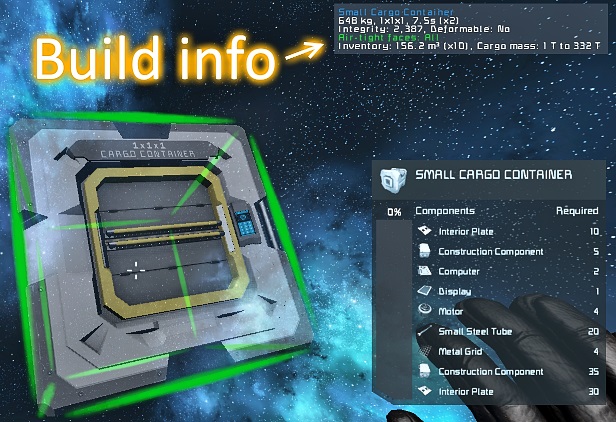
With a bigger block inventory size (x3, x10) cargo gets lighter for the thrusters: the game divides its mass by the multiplier. Many calculators multiply it instead. Thrust Budget shows the mass your thrusters actually lift.
How to use
- On any LCD, cockpit screen, holo or transparent LCD, or big panel, set Content to Script and pick Thrust Budget or Thrust Budget: Sides.
- The page fits the screen: one line on corner LCDs, a short page on cockpit screens, the full page on 1x1 and big panels, the page plus a picture on wide LCDs.
- A cockpit with several small screens? Put one part of the page on each. Lift, Height, Hold, Power, Side thrust and Stopping are in the Script list too.
- It counts the ship the screen is on, with the grids on its rotors, pistons and hinges. Ships docked by connector or landing gear are not counted; the screen says so.
- Nothing to set up. To change how a screen looks, see Settings below.
Thrust Budget
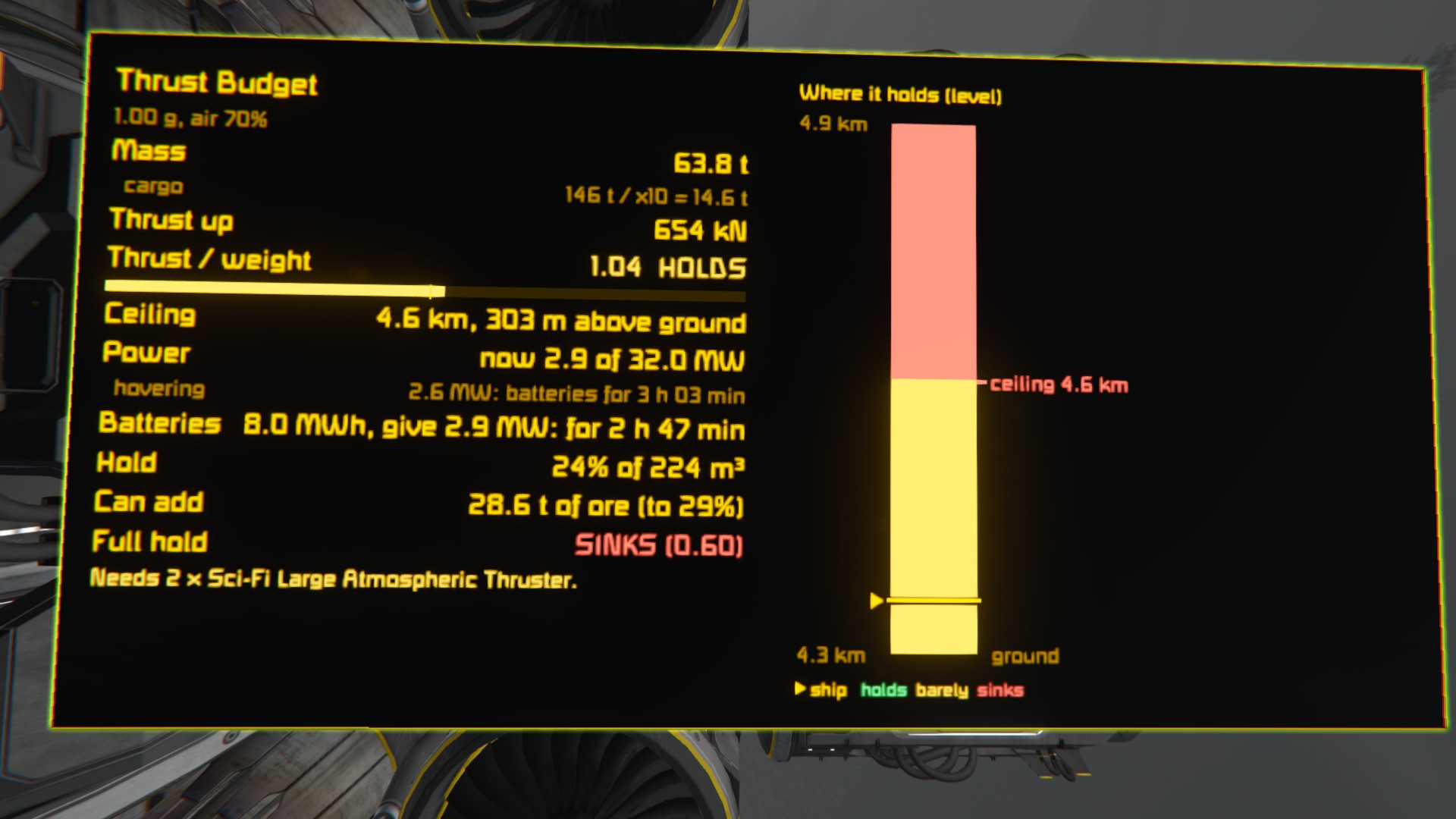
- Mass for the thrusters, with the cargo sum shown: "146 t / x10 = 14.6 t".
- Thrust / weight with LIFTS OFF or WON'T LIFT (in flight: HOLDS or SINKS), the same number live at your current tilt, and how it looks empty and with a full hold.
- Full thrust sideways while hovering: all electric thrusters share the ship's power, so flooring it forward can starve your lift thrusters. The screen tells you whether the ship still holds, how fast it sinks, and how much power hovering plus full thrust takes.
- If it won't lift: how much cargo to unload, or how many more thrusters of which kind to add.
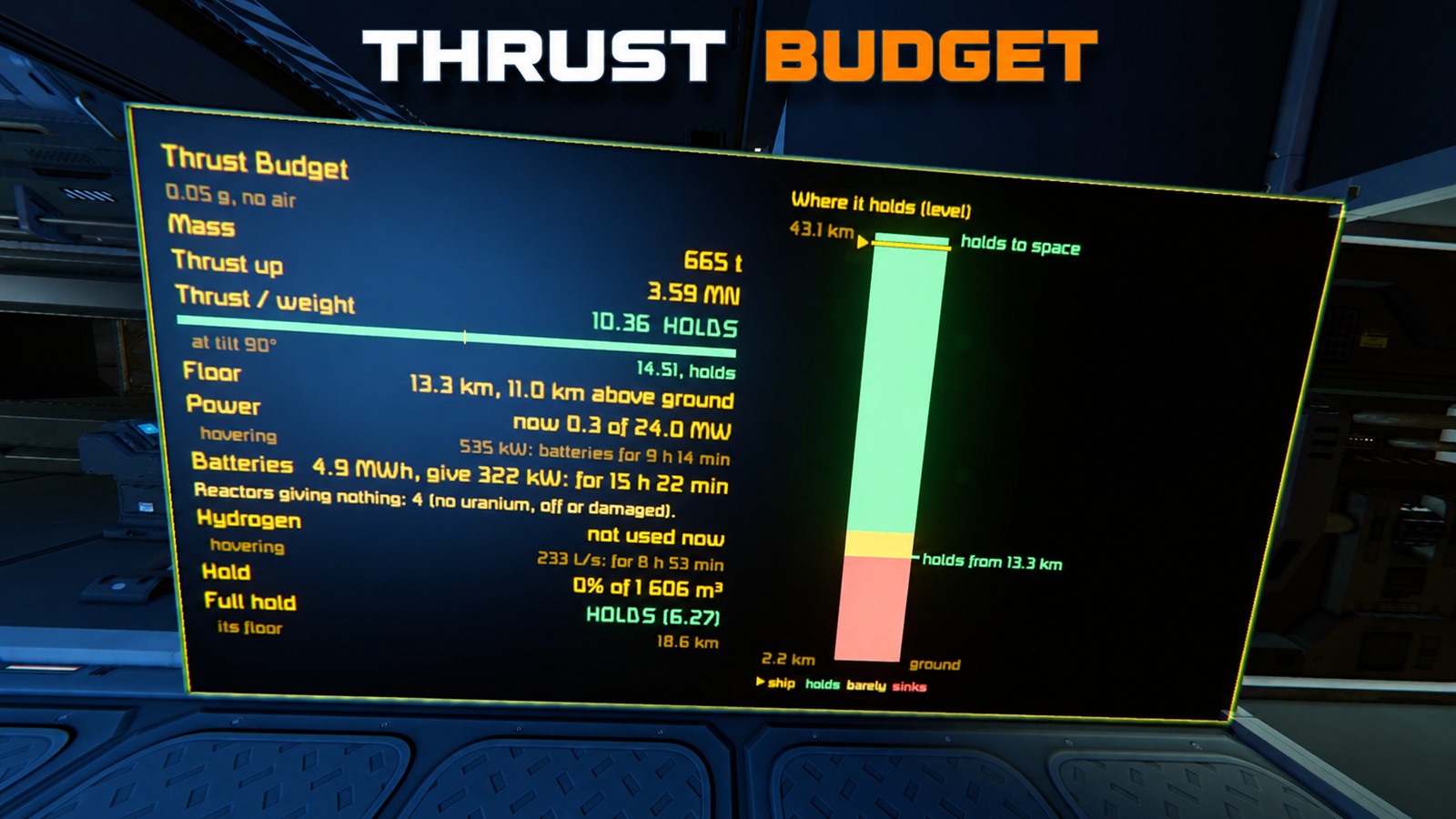
- Ceiling: how high the loaded ship holds. For space ships the floor: how low it can come down. Worked out from the planet's real air and gravity, modded planets included.
- Hold: how full it is, how much more ore you can load, and whether a full hold still lifts off (and what it would need).
- Power and hydrogen: power in use of what the ship has, batteries and tanks with how long they last now and while hovering. Warnings: not enough power for full thrust, tanks that cannot feed the thrusters fast enough, reactors without uranium.
- Wide LCD: an altimeter showing where the ship holds its altitude (green), barely holds (yellow) or sinks (red).
Thrust Budget: Sides
- Thrust and acceleration towards each side of the cockpit, with the current cargo and empty.
- Sides that lose thrust to the lift while you hold your altitude are marked, and so are the ones that make you sink.
- Braking distance and time at the current speed, if you let go of the keys now.
- Coming down to a planet: where the ship stops if you brake level now, or how fast it hits the ground.
- Wide LCD: arrows seen from the side and from above.
Parts for cockpit screens
- Thrust Budget: Lift: thrust / weight in big print, the tilt, full thrust sideways, empty and full.
- Thrust Budget: Height: the altimeter on the whole screen.
- Thrust Budget: Hold: how full, how much more to load, the full hold.
- Thrust Budget: Power: power now, hovering, full thrust sideways, batteries and hydrogen.
- Thrust Budget: Side thrust and Thrust Budget: Stopping: the two halves of Sides.
Settings (optional)
In short: in the block's Custom Data, under [Thrust Budget], write Screen N = full (or line, number, short) to pick how screen N looks.
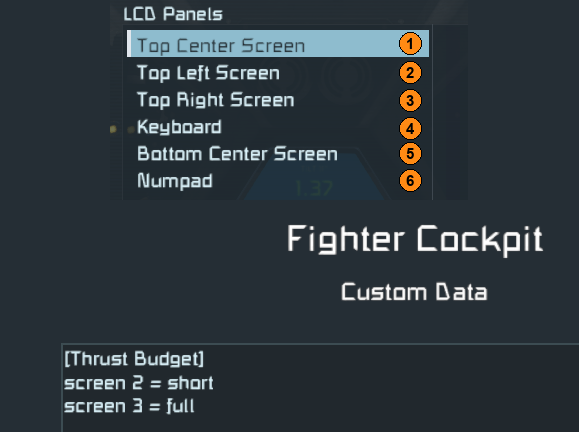
- Open the terminal of the cockpit or LCD and edit its Custom Data. Add this section at the top, above any other script's lines:
- [code]
- [Thrust Budget]
- Screen 2 = short
- Screen 3 = full
- [/code]
- N is the screen's place in the block's LCD Panels list, counting from 1. In the fighter cockpit above, Top Left Screen is 2 and Top Right Screen is 3.
- Layout = ... sets every screen of the block that has no line of its own. On a plain LCD this one line is enough.
- Values: auto (the default, picked by the screen's size), line (one line), number (one big number), short (the short cockpit page; the parts show their cockpit version), full (the full page, as on a 1x1 LCD).
- The screen changes as soon as you press OK. Delete the section to go back to auto.
- Upper or lower case and spaces do not matter, and a comment after ; or # is fine. Write one line per screen.
- Text of other scripts in Custom Data is left alone: Thrust Budget reads only its own section and never writes anything. The section is plain INI, so scripts that read Custom Data as INI keep working.
- Custom Data is shared in multiplayer, so everyone sees the same layout.
Good to know
- Thrust / weight above 1 means the ship holds and climbs; 1 to 1.25 (yellow) means it barely does.
- Air density, thruster efficiency and power use follow the game's code and were checked against the game's own figures.
- "Level" numbers are for the ship belly down; the tilt line shows your current attitude.
- When power runs short, the game cuts every electric thruster by the same share, the lift ones too. The dampeners then hold the ship only while it sinks a little, which is the "comes down ~1.5 m/s" you may see.
- Only the ship's own power and tanks count: a station feeding it through a connector does not. You see the ship as it will be after undocking.
Highlights
From source dataFootprint
Rated a light load on a server.
Last update
Its author last shipped an update 7d ago.
Thrust Budget — LCD lift & cargo calculator on Nxeon
From our catalogue- One-click install
- Not available. One-click install isn't available for this game's mods yet. Download it and upload it to your server in Files.
- Server load
- light
- Smallest plan we suggest
- Space Engineers — 8 GB (8 GB RAM). This follows our own load rating above, not a benchmark.
- Latest build
- 2026-10-28, released 2026-10-28
Game versions by loader
| Loader | Game versions | Newest |
|---|---|---|
| Workshop |
From 2 recorded builds of Thrust Budget — LCD lift & cargo calculator.
Recent builds
| Build | Released | Game versions | Loaders |
|---|---|---|---|
| 2026-10-28 | 2026-10-28 | n/a | Workshop |
| 2026-10-04 | 2026-10-04 | n/a | Workshop |
Run Thrust Budget — LCD lift & cargo calculator on a Space Engineers server
Deploy a server above, then upload the file in Files.
What kind of mod it is
From the catalogVehicles & ships
Cars, boats, aircraft, ships and other things to drive or fly.
Compatibility
- Game
- Space Engineers
Verified at the source
- ✓Steam WorkshopOfficial listing, checked 2026-11-04Open ↗
- ✓Authoryrst, as published on Steam Workshop
- ✓LicenseNot published by the sourceFree