




About VCZ Modular Cockpits with Dashboard Indicators
From Steam WorkshopTwo Cockpits with LCD, Cargo and Boost modules with fully working dashboard indicators for: Power Oxygen and Hydrogen levels Cargo fill levels Thrusters and Gyros overrides Connectors and Landing…
[img=https://s25.postimg.cc/9a06l0hwf/description.png]
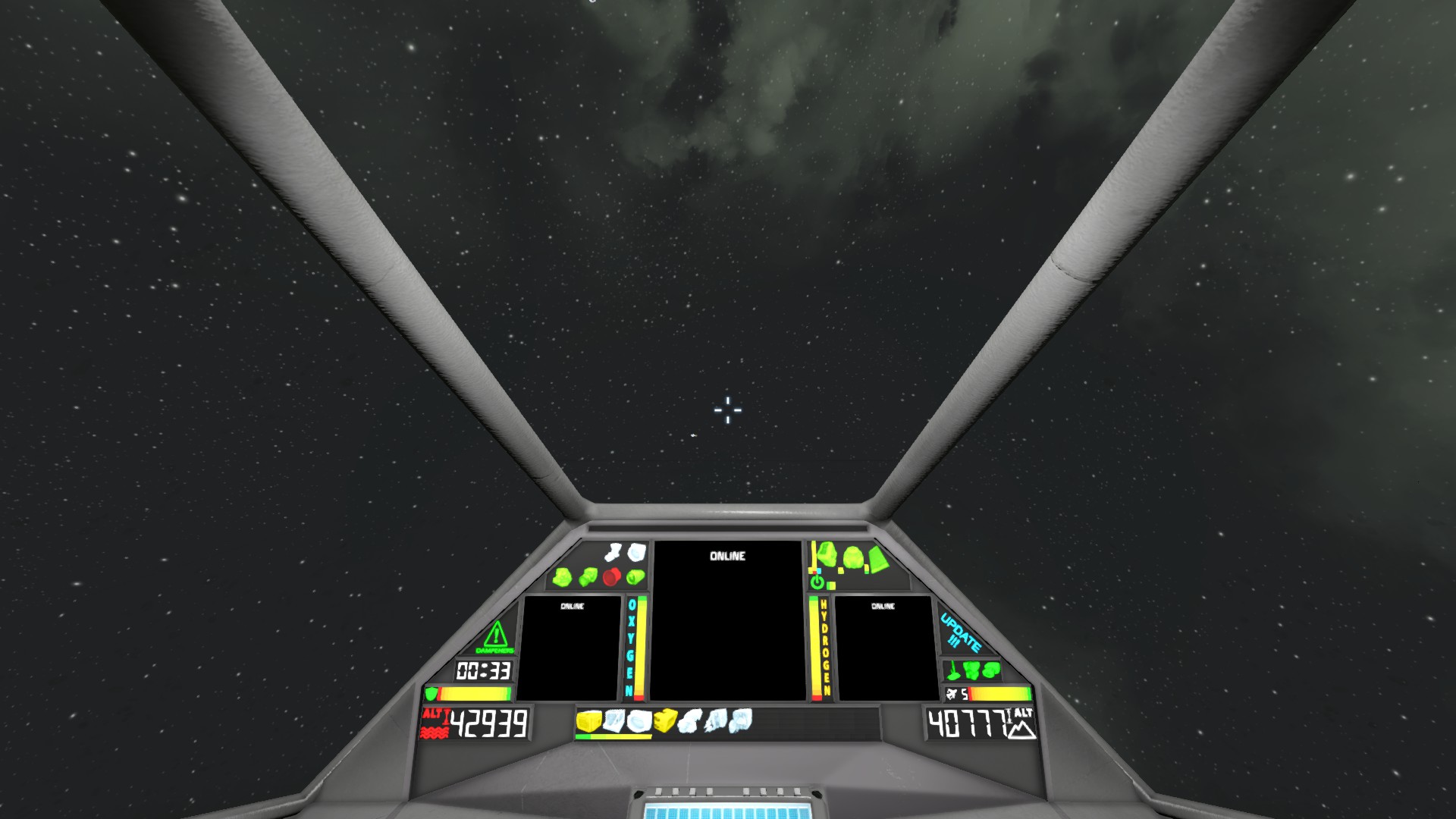
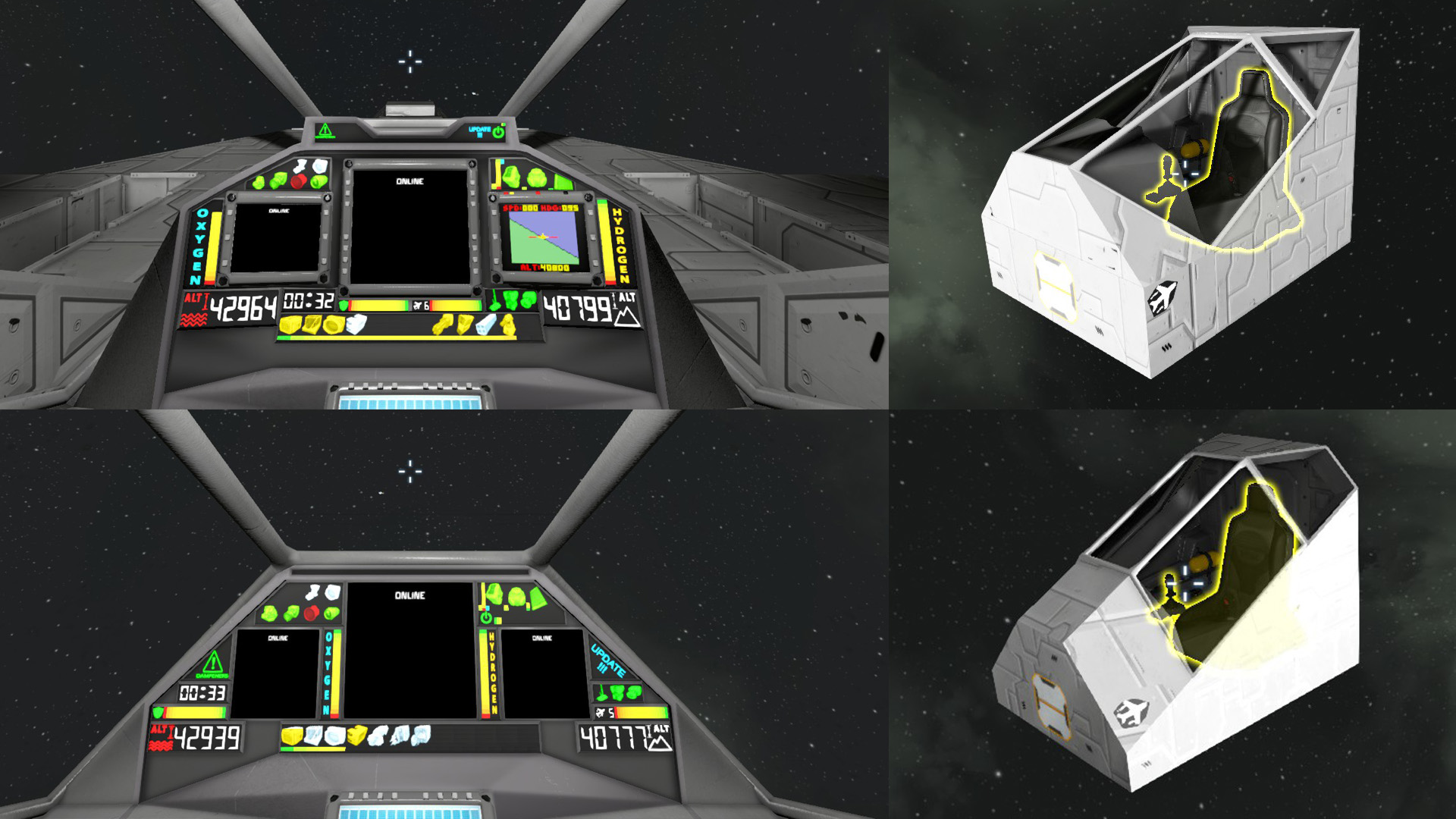
Two Cockpits with LCD, Cargo and Boost modules with fully working dashboard indicators for:
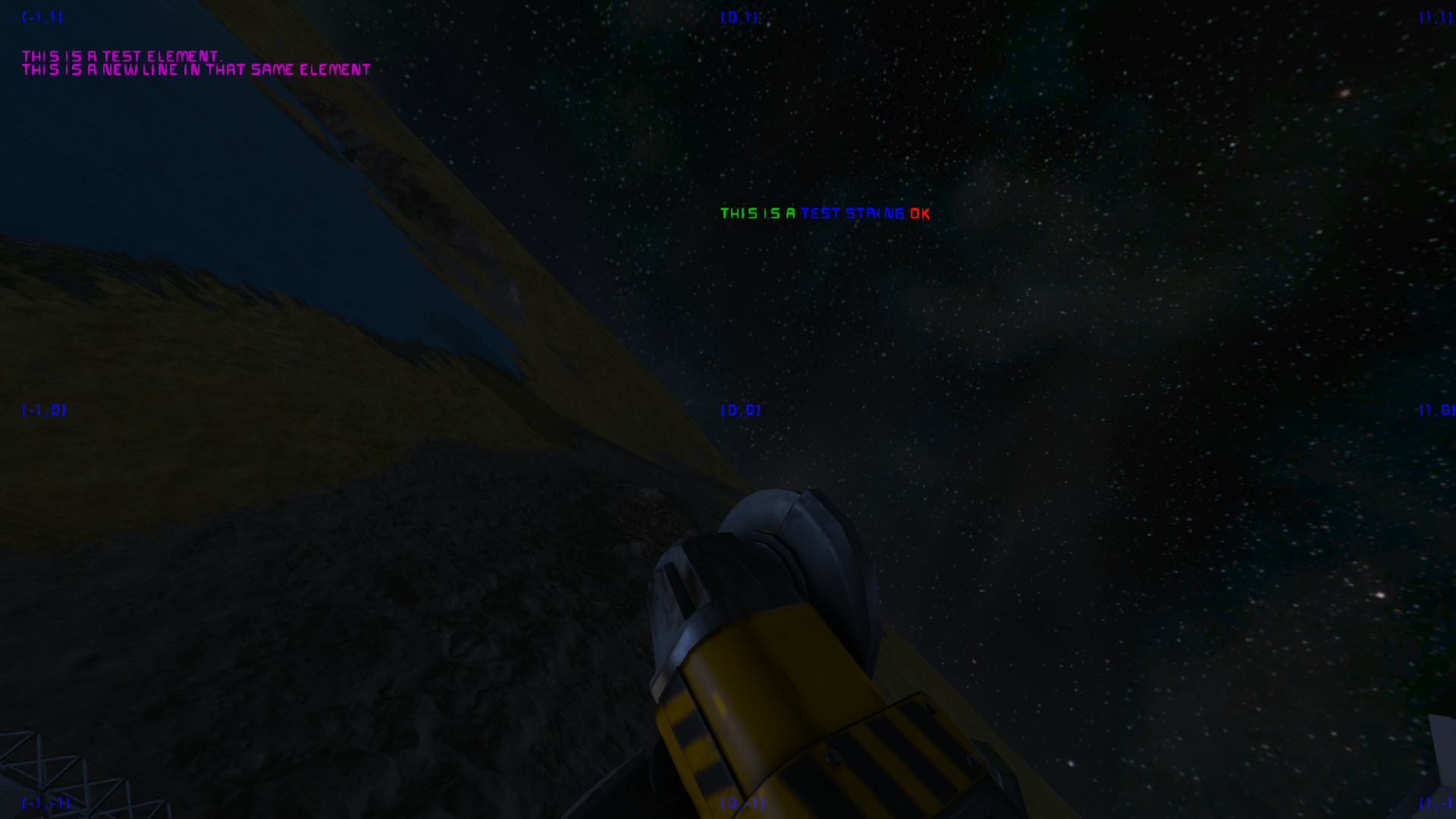
Power Oxygen and Hydrogen levels Cargo fill levels Thrusters and Gyros overrides Connectors and Landing Gears lock status Speedometer Boost status, charge and multiplier Altitude displays Clock Shield (both shield mods I am aware of - Defense Shield and Energy Shields) Radio Antenna, Beacon and Ore Detector Parachute (coming soon) Opening Canopy (Automatic or Manual)
Boost is a new feature and may not be well balanced yet. Your feedback can make it better.
The Cockpits and some of the module blocks are available in the G-menu in a separate group called "VCZ Mod Blocks", in the group ”Cockpits” and in the group ”Small Blocks”. Also you should be able to find the grouped Cockpit block in the main (All Blocks) G-Menu screen. It should appear on the same line with the vanilla cockpits and control seats (unless you are using other mods that use the same place). The LCD blocks are hidden to prevent clutter of the G-menu and can only be found using the search. They should not be needed since they are either placed automatically or have a button to place them in the Terminal Control of the Cockpit.
How to build the LCDs:
1. All three LCDs are placed automatically when you build the cockpit. 2. When you have an already built Cockpit but you lost one of the LCDs, you can easily replace it by pressing the button for it in the Terminal Control. 3. Open the G-menu and search for “VCZ”. This will display all blocks with my name tag in them, including hidden ones. Find the block you need and build it in the right place.
Any new built cockpit will place 2 Boost modules and the small cargo container automatically under the LCDs. If you want different position or orientation of the new modules you can grind them and place them manually (boost module blocks need to touch the cockpit). They are located inside the new grouped G-Menu item for the cockpits.
Any block that is placed by the script will be fully built and functional in Creative mode. If you are in Survival, you will need to weld them yourself. Please keep in mind, that to avoid possible parts exploits I have made it so the new blocks don’t have even the first component placed in. Because of that they show as if they already have all the components in them. That is until you start building them by welding at least the first required component. Automatic building systems like Nanobot Build and Repair and Nanite Control Factory will see them as fully built and will not construct them until they have the first component in.
How does Boost work:
- You need one of the two models of my cockpit (doesn't work on other cockpits). - You need at least one Boost module connected to the cockpit (boost module block needs to touch the cockpit block). The cockpit will inform you how many valid Boost modules it has found. - The Boost modules will consume and store power as a charge that can be released to multiply any thruster output. - You can set the boost strength between 2 and 10. Boost strength determines how fast the stored charge will be drained and also by how much the thrust will be multiplied. - Using Boost will also multiply the power consumption of thrusters by the Boost multiplier + 20%.
You can activate Boost by pressing and holding X (or if you remapped it - the jet-pack button) or by selecting the option Boost Always ON in the terminal control or from the toolbar option. Selecting Boost strength is also done either in the terminal control or from toolbar options.
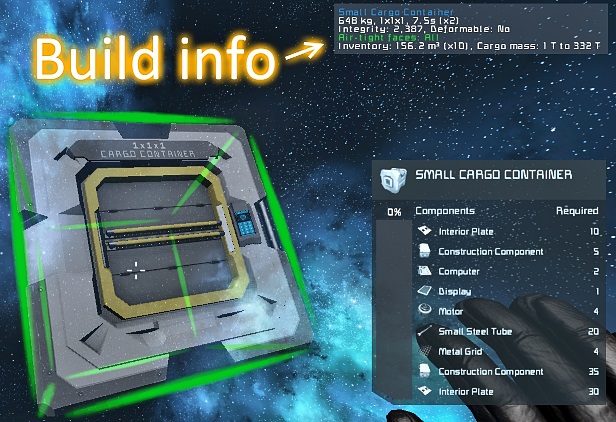
[img=https://s25.postimg.cc/m1ecrj73z/construction.png] Different construction requirements and times for different blocks.
[img=https://s25.postimg.cc/b1t5fwtjj/attributes.png] Almost all functionality is explained in the pictures. If I missed some small detail I hope it's pretty straightforward and easy to figure out. If there is something unclear please let me know and I will try to illustrate it better.
The Opening Canopy has automatic and manual operation modes. They can be switched either from Terminal control or from a toolbar action. In automatic mode it will detect if a player is close enough and open automatically then close when a player gets inside. In manual mode three more actions will become available for toolbar slots. You can use them to control the canopy.
[h1]For a full HUD off experience I recommend Whip's Artificial Horizon Script for one of the 3 LCDs:[/h1] https://steamcommunity.com/sharedfiles/filedetails/?id=713653017
[img=https://s25.postimg.cc/8khe8np2n/plans.png] Features I plan to add to this mod: Parachute indicator - icon changes to GREEN (ON and has canvas), BLUE (ON, has canvas and is set to auto-deploy), ORANGE (ON but empty inventory, doesn't matter if it's set to auto-deploy) and RED (OFF, doesn't matter if it has canvas or if it's set to auto-deploy). Add slider to pick color step from red to yellow and from green to yellow (basically give some control over the mid range colors of the indicators). Add slider to pick speed limit for the Speedometer (still capped at 500 m/s).
Features I am considering adding to this mod: Add slider to select Emissives brightness. I am afraid the Terminal Control is getting a bit too cluttered and this is not too useful, but could be nice to have. Not a priority at this moment. Add some additional support blocks. Very early on I received some suggestions for blocks that could take the three spaces below the LCD’s. Some of those suggestions were: O2/H2 Generator, 1x3x1, with higher ice consumption and slower processing; Cargo Container, 1x3x1; O2 and H2 tanks, 1x1x1; Emergency reactor and/or battery, could be any size;
Highlights
From source dataFootprint
A 6 MB download, rated a light load on a server.
Last update
Its author last shipped an update 7 yr ago.
VCZ Modular Cockpits with Dashboard Indicators on Nxeon
From our catalogue- One-click install
- Not available. One-click install isn't available for this game's mods yet. Download it and upload it to your server in Files.
- Server load
- light
- Smallest plan we suggest
- Space Engineers — 8 GB (8 GB RAM). This follows our own load rating above, not a benchmark.
- Latest build
- 2020-03-14, released 2020-03-14, 6 MB
Game versions by loader
| Loader | Game versions | Newest |
|---|---|---|
| Workshop |
From 1 recorded build of VCZ Modular Cockpits with Dashboard Indicators.
Run VCZ Modular Cockpits with Dashboard Indicators on a Space Engineers server
Deploy a server above, then upload the file in Files.
What kind of mod it is
From the catalogVehicles & ships
Cars, boats, aircraft, ships and other things to drive or fly.
Compatibility
- Game
- Space Engineers
- File size
- 6 MB
Verified at the source
- ✓Steam WorkshopOfficial listing, checked 2026-10-10Open ↗
- ✓AuthorVicizlat, as published on Steam Workshop
- ✓LicenseNot published by the sourceFree