WooCommerce is heavier than a plain WordPress site — dynamic pages, a busy database and real transactions. Here's how to host it on a VPS that stays fast and secure.
WooCommerce turns WordPress into a full online store — and that makes it noticeably heavier to host than a plain site. Carts and checkouts are dynamic (they can't be fully page-cached), the database is busier, and you're handling real transactions. Here's how to host WooCommerce on a VPS that stays fast and secure.
Why WooCommerce needs more than a basic plan
A blog can serve most visitors from a static page cache. A store can't: cart, account and checkout pages are unique per user and must run PHP and hit the database every time. That means:
- More CPU for dynamic page rendering.
- More RAM for PHP workers, object caching and the database.
- Fast NVMe storage because the database is doing more work.
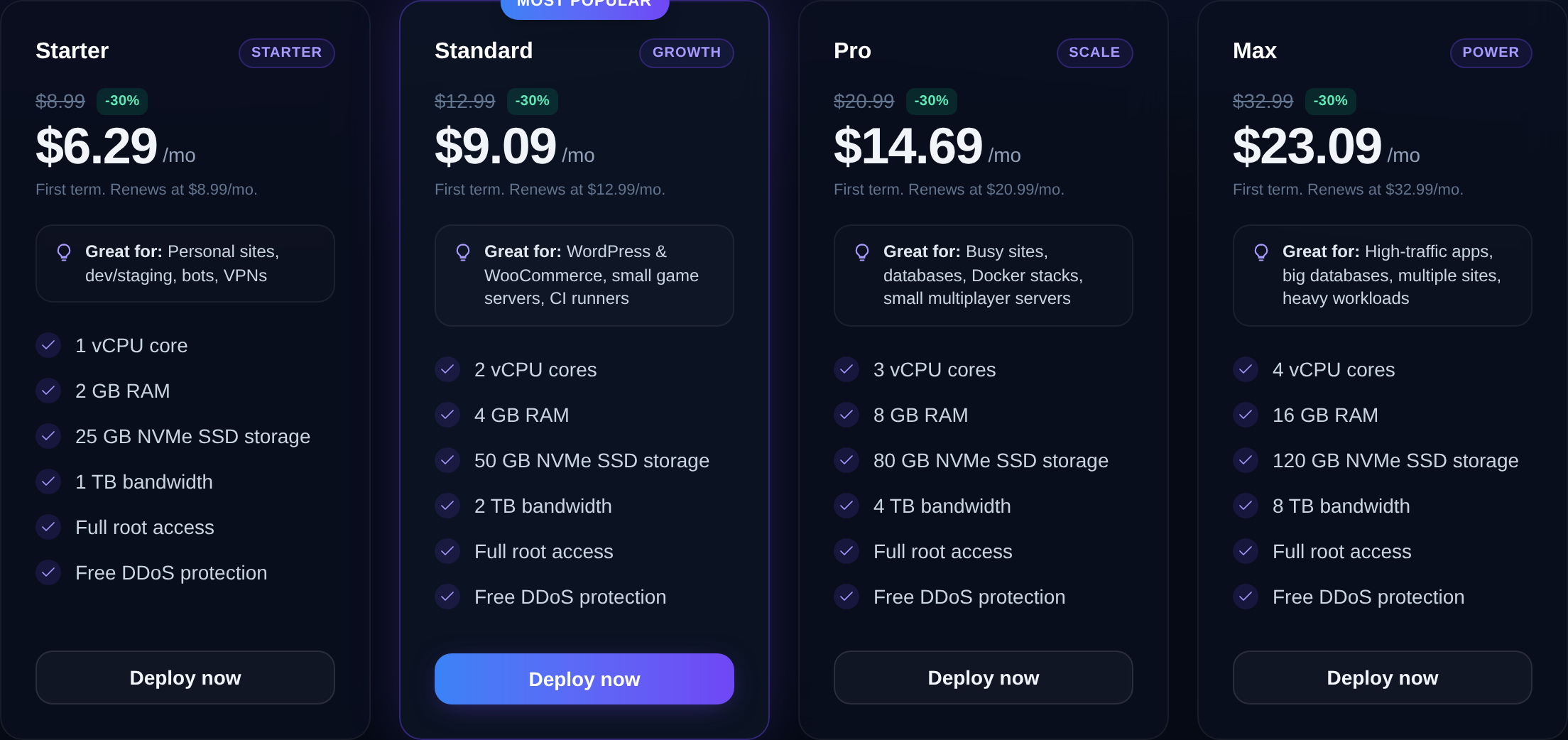
Defensible sizing: start at 4 GB RAM for a small-to-medium store, and step up to 8 GB+ as your catalogue, traffic and order volume grow. Our best VPS for WordPress and how to choose a VPS plan guides help you size it.
Build on a solid LEMP stack
Install WordPress with Nginx, PHP-FPM and MariaDB, then add the WooCommerce plugin. If you're starting fresh, follow how to install WordPress on a VPS (LEMP stack). Use a current PHP version — newer PHP is meaningfully faster, which matters when every checkout runs code.

Cache carefully — respect the cart
Caching still helps a store enormously, but you must exclude the dynamic pages. Page-cache your shop and product pages for logged-out visitors, but never cache cart, checkout or my-account. Then lean on Redis object caching to speed up the dynamic pages that can't be page-cached:
sudo apt install -y redis-server php-redis
sudo systemctl enable --now redis-server
Our speed up WordPress with caching guide covers the layering — just apply the cart/checkout exclusions.
Security and PCI basics
A store handles customer data and payments, so security is non-negotiable:
- Force HTTPS everywhere with Let's Encrypt — required for trust and checkout.
- Use a reputable payment gateway (Stripe, PayPal) so card data is handled off your server, keeping PCI scope minimal.
- Harden WordPress per how to secure a WordPress site on a VPS.
- Back up frequently — orders and customer data are irreplaceable. See how to back up a VPS.
Tune the database — WooCommerce leans on it hard
A WooCommerce store's database works far harder than a blog's. Products, variations, orders, customers and especially the wp_options and wp_postmeta tables grow quickly and are queried constantly. A little database care keeps the store snappy:
- Give MariaDB enough memory. Tuning
innodb_buffer_pool_sizeso a good chunk of your working data fits in RAM dramatically cuts query latency. On a store with 4 GB+, this is one of the highest-impact tweaks. - Clean up bloat. Expired transients, old order drafts and abandoned cart data accumulate. Periodic cleanup keeps tables lean and queries fast.
- Keep the database local. Running MariaDB on the same VPS as WordPress avoids network latency on every query — one reason a single well-sized VPS often beats a split setup for a small-to-medium store.
- Back it up frequently. Orders and customer records are irreplaceable; a scheduled database dump to off-server storage is non-negotiable — see how to set up automated backups on a VPS.
Plan for growth and busy periods
A store's traffic isn't steady — sales, launches and seasonal peaks bring surges that a brochure site never sees. Provision for the busy day, not the quiet average:
- Size for peak. A flash sale or a holiday rush can multiply your normal traffic. Headroom in CPU and RAM keeps checkout working when it matters most — a slow checkout during a sale is lost revenue.
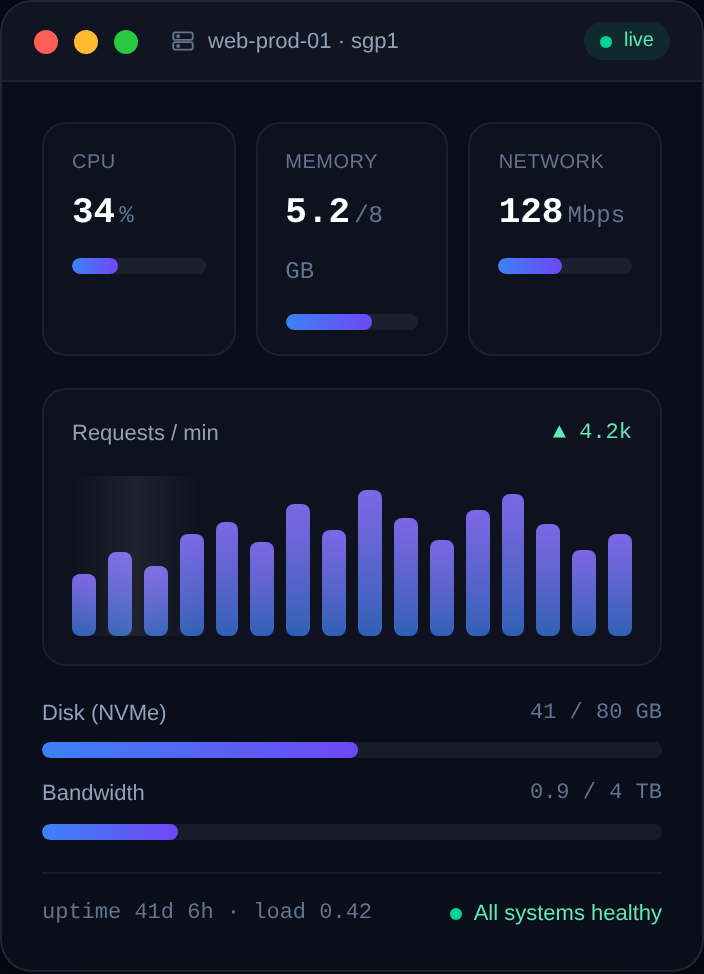
- Watch resource use through busy periods so you can resize before the next peak — server resource monitoring shows where you stand.
- Scale up easily. A good VPS resizes in minutes, so you can start right-sized and grow as your catalogue and orders climb rather than over-buying up front.
- Keep the stack current. Newer PHP and MariaDB versions are faster, and every millisecond off a checkout page compounds across thousands of orders.
Because you have full root, you control every layer — web server, PHP, cache and database — and can tune the whole stack specifically for a shop, which shared hosting simply won't allow.
Where Nxeon fits
Nxeon's NVMe KVM VPS give a WooCommerce store the dedicated CPU, RAM and fast disk it needs, with full root to tune PHP, Redis and Nginx exactly for a shop. Start from WordPress VPS hosting, get free migration help to move an existing store, and add business email for order notifications. Compare plans on pricing.
FAQ
How much RAM does WooCommerce need on a VPS?
Start around 4 GB for a small-to-medium store and scale to 8 GB or more as your catalogue, traffic and order volume grow. WooCommerce is heavier than a plain WordPress site because checkout pages can't be fully cached.
Can I cache a WooCommerce store?
Yes, but carefully. Page-cache your shop and product pages for logged-out visitors, and always exclude cart, checkout and account pages. Use Redis object caching to speed up those dynamic pages that can't be page-cached.
Is a VPS PCI compliant for WooCommerce?
Using a hosted payment gateway like Stripe or PayPal keeps card data off your server, minimising your PCI scope. Combine that with HTTPS everywhere, a hardened server and regular backups for a secure store.
Why is my WooCommerce store slow?
Usually under-provisioned resources or missing object caching. Checkout and account pages run PHP and hit the database on every load, so give the store enough CPU/RAM, add Redis, and use a current PHP version.
Ready to sell? Start with WordPress VPS hosting or get free migration help to move your store.

Web hosting
Deploy in seconds, not weekends
Nxeon · Nxeon editorial
★★★★★ Straight-talking guides from the team that runs the servers.