Shared hosting slows down as your site grows. Here's how to choose a VPS that keeps WordPress fast — the specs, stack and features that matter for real traffic.
Once a WordPress site gets real traffic, shared hosting starts to creak — slow admin, timeouts under load, and "resource limit reached" emails. A VPS fixes that by giving you dedicated resources and full control of the stack. Here's how to pick one that keeps WordPress genuinely fast.
What makes WordPress fast on a VPS
WordPress performance is a chain: PHP execution, database queries, and caching. A good VPS lets you tune all three, which shared hosting rarely does.
- CPU: WordPress renders pages in PHP. Modern cores mean faster time-to-first-byte, especially for logged-in and WooCommerce pages that skip the page cache.
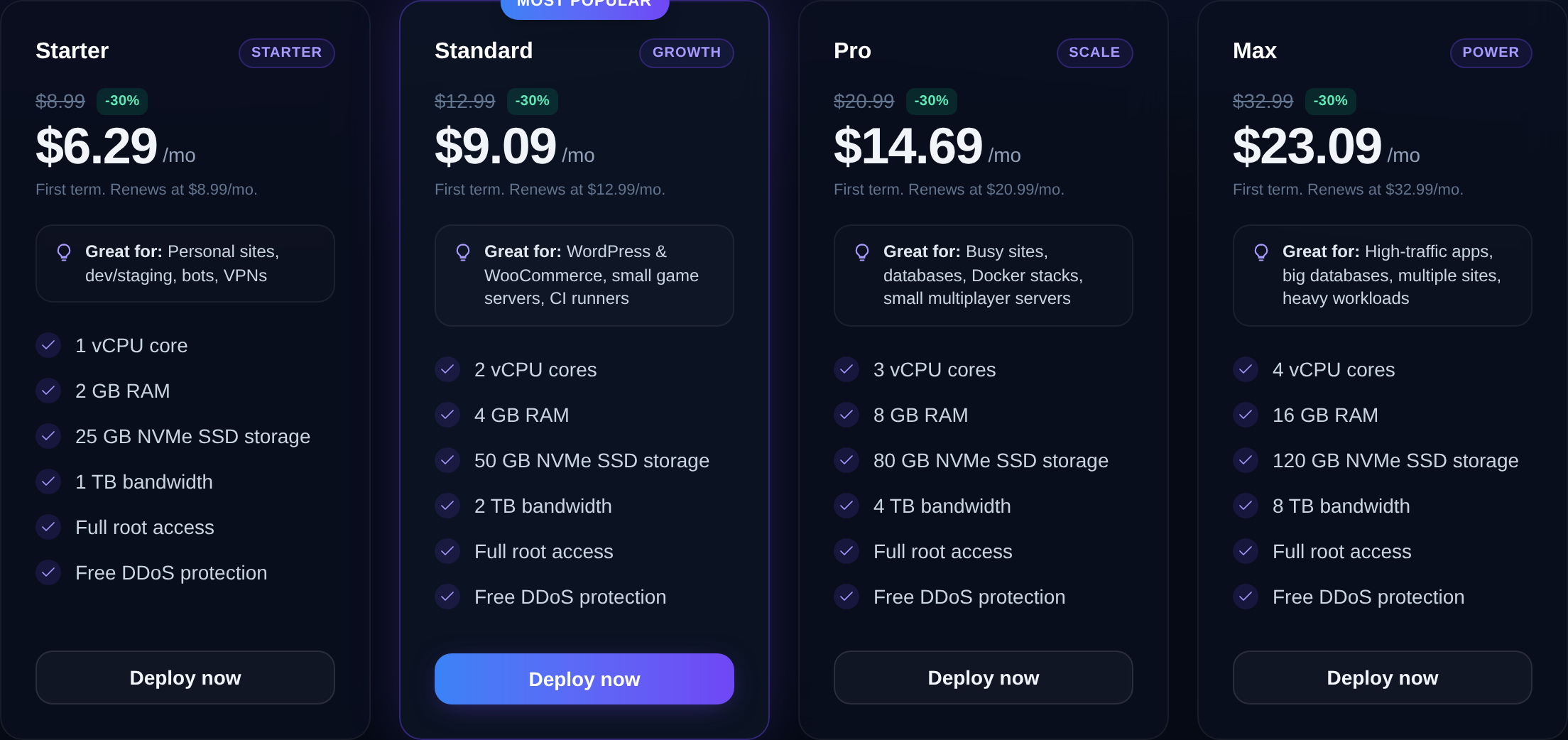
- RAM: 2 GB runs a typical blog or brochure site comfortably; 4 GB gives breathing room for a busier site, PHP-FPM workers and object caching; 8 GB+ suits WooCommerce or high traffic.
- NVMe storage: the database and media library benefit hugely from fast disk. NVMe cuts query latency and speeds up backups.
Pick the right stack
Two common choices:
- LEMP (Nginx + PHP-FPM + MySQL/MariaDB): lean, fast, the default recommendation for performance.
- LAMP (Apache): flexible with
.htaccess, slightly heavier.
Nginx with PHP-FPM handles concurrency better under load. Our step-by-step how to install WordPress on a VPS (LEMP stack) walks the whole build, and how to host WordPress on a VPS covers the fundamentals.
Caching is the biggest win
Nothing speeds WordPress up more than caching. Layer it:
- Page cache (FastCGI cache or a plugin) serves static HTML to logged-out visitors.
- Object cache (Redis) speeds up repeated database queries.
- OPcache keeps compiled PHP in memory.
A quick Redis install:
sudo apt update && sudo apt install -y redis-server php-redis
sudo systemctl enable --now redis-server
For the full treatment, see how to speed up WordPress on a VPS with caching.

Don't forget security and backups
A VPS means you own the security too — but that's a feature, not a burden. Enable a firewall, keep PHP updated, add HTTPS with Let's Encrypt, and back up regularly. Our guide to securing a WordPress site on a VPS has a full checklist.
Tune PHP for real traffic
The default PHP settings that ship with a distro are conservative — fine for a demo, limiting for a busy site. On a VPS you can raise them, which shared hosting won't let you do. The settings that matter most for WordPress live in your PHP-FPM pool config and php.ini:
pm.max_childrencontrols how many PHP worker processes can run at once. Too few and requests queue under load; too many and you exhaust RAM. Size it to your available memory divided by the average worker size.memory_limit— 256M is a sensible WordPress default; heavy plugins or WooCommerce may want more.upload_max_filesizeandpost_max_size— raise these if you upload large media or import content.max_execution_time— bump it for long imports and backups.
After editing, reload PHP-FPM with sudo systemctl reload php*-fpm. Getting these right is often the difference between a site that handles a traffic spike and one that throws 502 errors.
Managed or self-managed?
Running WordPress on a VPS means you own updates, security and backups. That's more control but also more responsibility. You have three broad options:
- Fully self-manage on an unmanaged VPS — cheapest, most control, most hands-on. One-click images and automatic security updates make it far less work than it sounds.
- Managed VPS — the provider handles server maintenance so you focus on the site. See managed vs unmanaged VPS to weigh it up.
- Start managed, learn, then switch as your confidence grows.
Whichever you choose, the performance and control advantages over shared hosting remain — you're just deciding who does the maintenance. For the broader case, read why a VPS beats shared hosting for a growing site.
Where Nxeon fits
Nxeon runs NVMe KVM VPS plans with one-click OS images and full root, so you can build LEMP exactly the way you like — or start from WordPress VPS hosting for a faster path. Migrating an existing site? Nxeon offers free migration help. Compare plans on the pricing page to match RAM to your traffic.
Buying checklist
- 2 GB for a blog, 4 GB+ for a busy site, 8 GB+ for WooCommerce.
- Insist on NVMe and modern CPU.
- Plan for Nginx + PHP-FPM + Redis for real speed.
- Confirm you can add free SSL and your own backups.
- Get full root so you can tune PHP and the web server.
FAQ
Is a VPS better than shared hosting for WordPress?
For anything beyond a low-traffic site, yes. A VPS gives dedicated CPU and RAM, control over PHP and caching, and no shared-neighbour slowdowns — the usual causes of a sluggish WordPress site.
How much RAM does WordPress need on a VPS?
A typical blog runs fine on 2 GB. Step up to 4 GB for a busy site with object caching and more PHP workers, and 8 GB+ for WooCommerce or high concurrency.
Do I need to be technical to run WordPress on a VPS?
It helps, but one-click OS images and guides make it approachable. If you'd rather not manage it yourself, managed WordPress VPS options remove most of the maintenance.
What's the fastest WordPress stack?
Nginx with PHP-FPM, a modern PHP version, MariaDB, plus page caching, Redis object caching and OPcache. That combination handles far more traffic than default shared hosting.
Ready to move? Start with WordPress VPS hosting or get free migration help to bring your existing site across.
Web hosting
Deploy in seconds, not weekends
Nxeon · Nxeon editorial
★★★★★ Straight-talking guides from the team that runs the servers.