





About 3D Ship Projection
From Steam WorkshopCAUTION: Use at your own risk! Never use it on public servers! Heavy performance impact! ======================================================================== Text surfaces support added. Keep in…
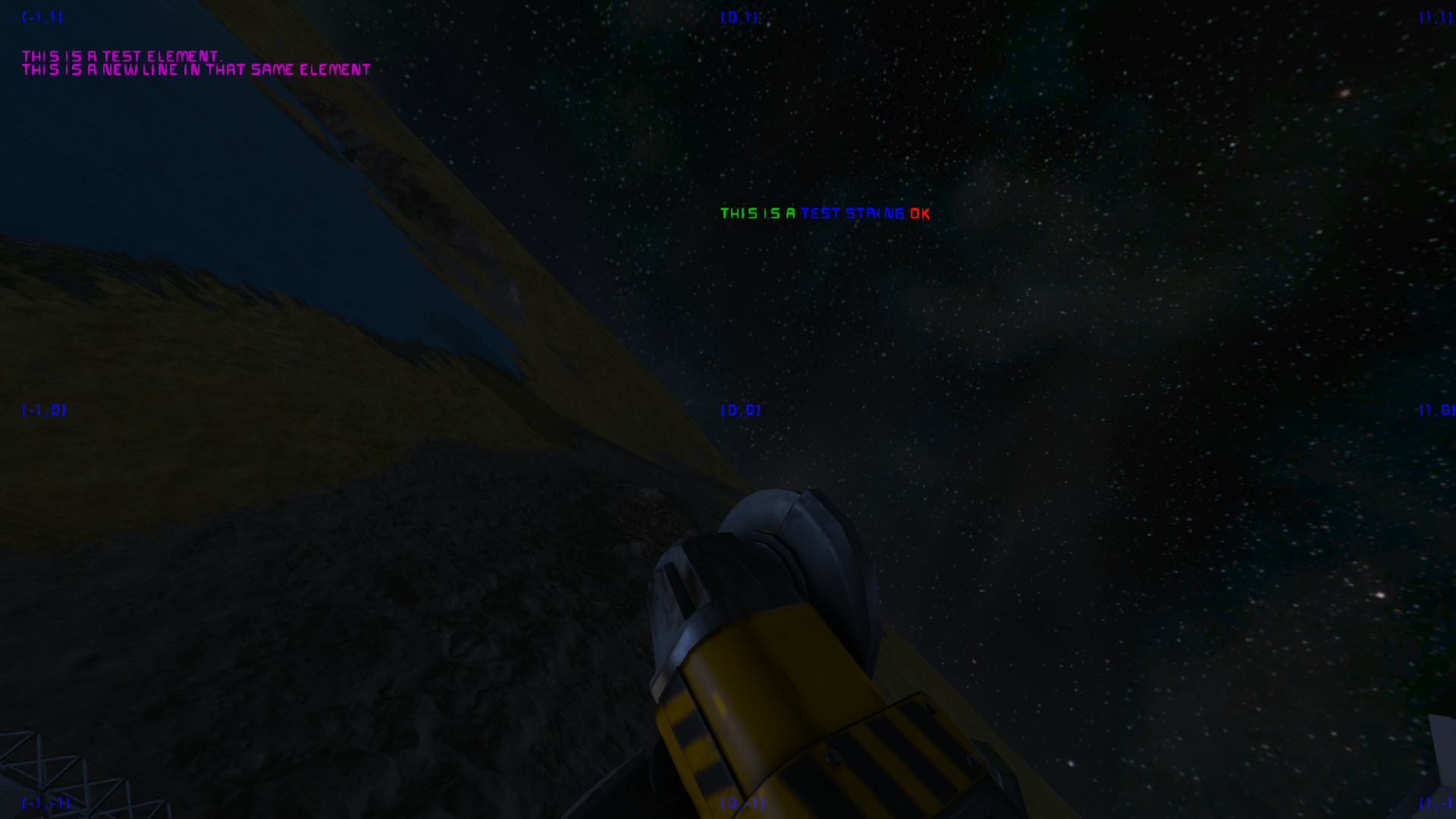
CAUTION: Use at your own risk! Never use it on public servers! Heavy performance impact! ======================================================================== Text surfaces support added. Keep in mind the script was not originally written to support this, so it's not perfect (image running out of screen with different sizes than original LCD). To use it, add zero-based index of surface after second '/' character of tag. If none specified, zero is used. Example: 3D/1,2/0; 3D/Menu/1
To make it work, you must switch LCD font to "Monospace". ========================================================================
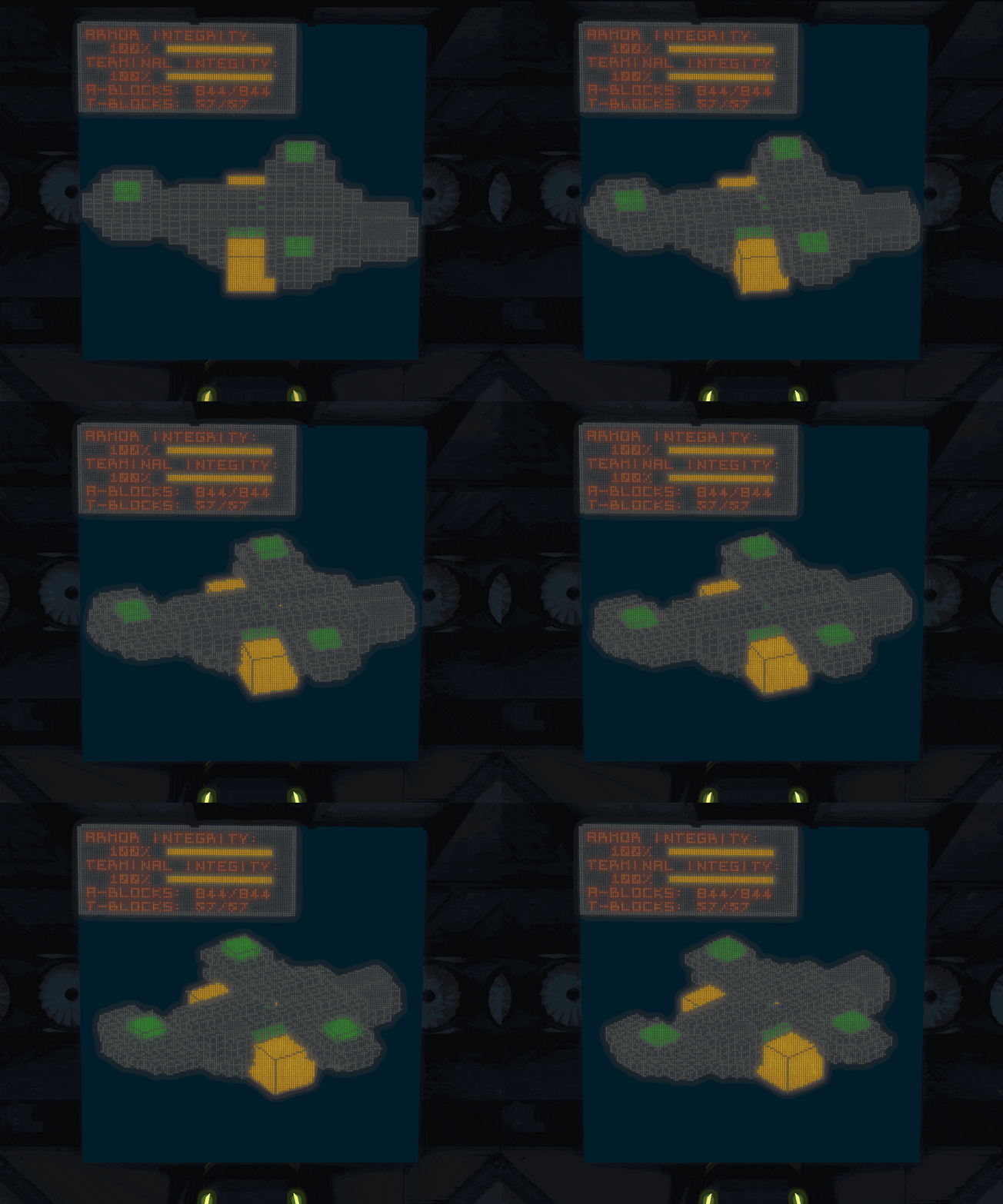
Ship diagnostic tool. Useful script for viewing your ship in 3D from your bridge online.
Script is compatible with Digi's control module. However it is not essential to run script. Only controlling menu will be a bit more difficult.
Introduction:
This script is able to scan your grid and also all connected grids containing at least one terminal block. Then it shows output on screen including which block are functional (and if they are actually working), which are damaged and also destroyed. On included HUD shown on top left corner you can immediately determine your ship's status. I focused on variability and simplicity, so every variable you can change is accessible without opening script and changing values there. Instead of it, you change them in menu controled by buttons or using Digi's Control Module. Changes made to this script are saved through sessions in certain world.
Setup of script:
1) Place this script to programmable block, compile it and save it. 2) To determine on which LCD panel the projection will be shown, add a '3D/x,y/' to its name, where x and y are indexes of position of panel in panel matrix, starting at zero. This means the most top left LCD panel should have '3D/0,0/'. (Ignore quotation marks.) To print it on different surface, use index behind the tag: 3D/1,2/0; 3D/Menu/1 If you don't understand, you can start with adding only '3D//'.
To adjust projection (scaling, rotation correction, rotation speed, color schematics, toggle functions), use MENU -> "Set parameters". There are more settings available there, just have a look.
Setup of menu:
Menu is toggeable, means it will NOT show up right after you set up name of LCD. To show it, press "menu" button.
1) To name of a LCD panel you want the menu be displayed on - add tag '3D/Menu/' To print it on different surface, use index behind the tag: 3D/1,2/0; 3D/Menu/1 2) To control menu you need 7 buttons in total. (In toolbar or on button panel). To make buttons, (if you don't use Digi's Control Module) run the programmable block with these arguments: left, right, up, down, enter, back, menu 3) To toggle menu, press 'menu' button.
If you use Digi's Control Module, set it to read all inputs and uncheck the 'Run on input' checkbox. Keybinding is as follows: left/right/up/down - Numeric 4/6/8/2 enter - Numeric 5 back - Numeric 0 switch menu - Home
Setup of HUD screen:
You can have only HUD displayed on LCD. To make it so, add this tag to LCD: '3D/HUD/' To print it on different surface, use index behind the tag: 3D/1,2/0; 3D/HUD/1 And that's all. (This feature was implemented very roughly, and is not very optimized neither fancy-coded. Script crashes and non-intended behaviour may occur.)
Setup events:
Script will trigger certain timer block if ship integrity will fall under or is equals defined percent. After triggered, it will wait till the integrity raise above the percent before it is triggered again. To setup an event timer block, add '3D/<type>_<percent>/' to it's name, where <type> is either 'ARMOR', 'TERMINAL' and 'TOTAL' and percent is integer between 0 and 100. Examples: 3D/ARMOR_80/ 3D/TOTAL_99/
Whitelisted grids:
To reduce rendering time and simplify view, you can set which grids will be shown. In menu, open 'Whitelist grids' and then you can manage through passing arguments to programmable block, which keywords (at least one) must contain any block on grid to be shown. I personally add ship tag to every block belonging to that ship. This way, if you have a spotlight on rotor, and spotlight contains ship tag, and you add tag to whitelisted grids, event the spotlight is shown.
Additional notes:
If you want to reset settings, run the programmable block with 'RESET' argument.
If you want to pause execution of script (for whatever reason), use 'power [on/off]' to pause the execution.
Keep in mind that the more LCDs you use to projecting, the longer will it took. Also when big picture is shown on LCDs, it will make lag. (Since game must render very much characters on LCDs, it is not cheap).
It is possible to regulate the refresh rate of ship scanning and model rendering. These values found in menu configuration means which ticks will script wait before processing task. (More or less). The ship scanning has the most priority. So if you set Ship refresh rate to lower value than the ship scanning actually take, it will lock the script to only scanning ship without rendering results.
I defined 5 different color schemas for use. If you want to change it, and you can do C#, look for char GetBlockColor#() functions is ShipObject class. It is not difficult to understand what is going there. For others, the presets are: #1: FUNCTION - Functional blocks are green if working, otherwise yellow. Missing are red. Not functional terminal blocks are lighter gray, others dark gray.
Highlights
From source dataFootprint
A 87 KB download, rated a light load on a server.
Last update
Its author last shipped an update 7 yr ago.
3D Ship Projection on Nxeon
From our catalogue- One-click install
- Not available. One-click install isn't available for this game's mods yet. Download it and upload it to your server in Files.
- Server load
- light
- Smallest plan we suggest
- Space Engineers — 8 GB (8 GB RAM). This follows our own load rating above, not a benchmark.
- Latest build
- 2019-05-02, released 2019-05-02, 87 KB
Game versions by loader
| Loader | Game versions | Newest |
|---|---|---|
| Workshop |
From 1 recorded build of 3D Ship Projection.
Dependencies
Declared by the newest build that lists any. Required ones are installed with it on one-click installs.
Run 3D Ship Projection on a Space Engineers server
Deploy a server above, then upload the file in Files.
What kind of mod it is
From the catalogVehicles & ships
Cars, boats, aircraft, ships and other things to drive or fly.
Compatibility
- Game
- Space Engineers
- File size
- 87 KB
Verified at the source
- ✓Steam WorkshopOfficial listing, checked 2026-10-10Open ↗
- ✓AuthorGeorgik, as published on Steam Workshop
- ✓LicenseNot published by the sourceFree